
Upload a normal image, screenshot, product shot, or old photo and let insMind increase clarity, resolution, and detail. The workflow is built for people who want a simple HD photo converter, not a complicated editing panel.

HD Photo Converter to Convert Images to 1080p or 4K
00:00
00:00
up to 30 images
Or drop image here, paste image or URLTry with one of these


00:00
00:00
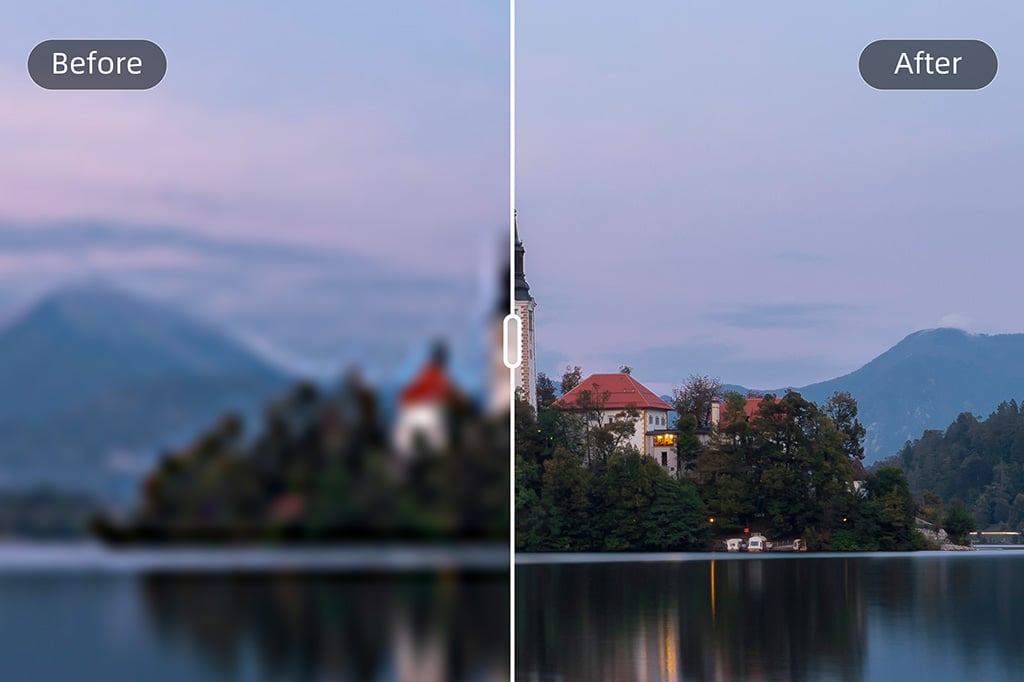

Batch Convert Photos to HD, 1080p, or 4K
Need the same quality upgrade across a folder of images? Use batch mode to process up to 30 pictures at once. It is useful for product catalogs, campaign assets, social content, and client photo sets.
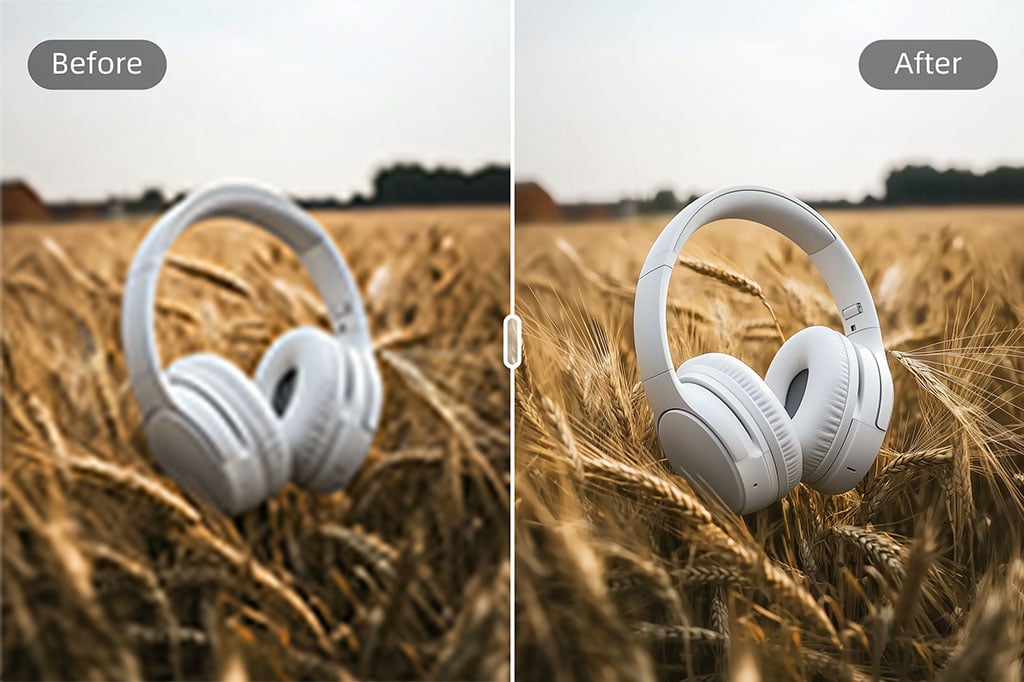
Prepare Product and Marketing Images for Clearer Display
Low-quality visuals can make a product page or ad look unfinished. Convert compressed product photos into sharper HD images so textures, edges, labels, and colors are easier to inspect.
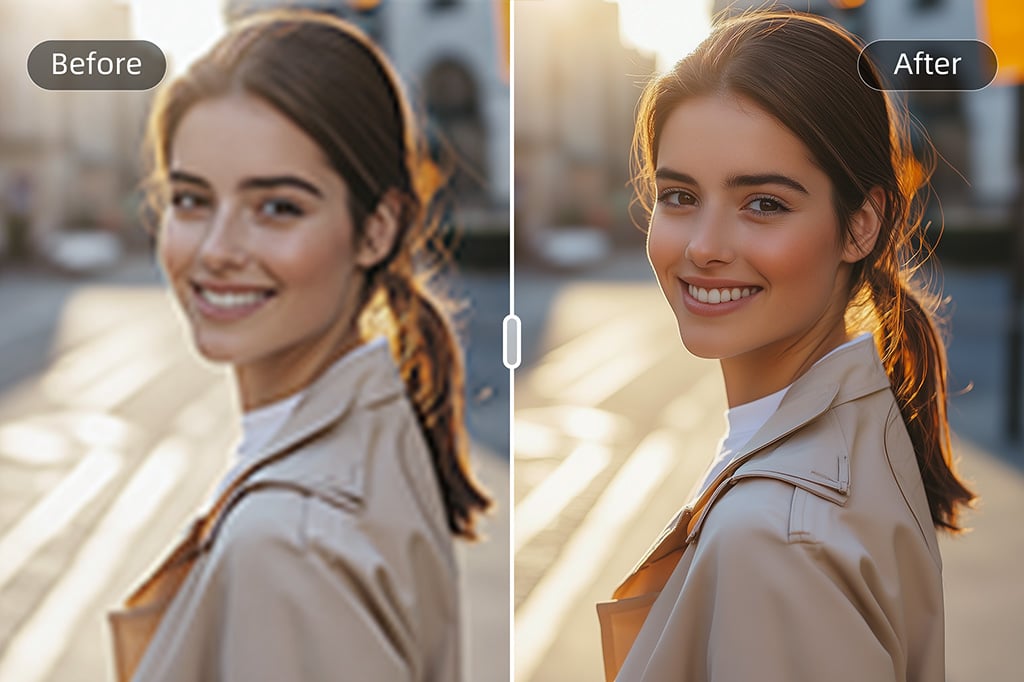
Make Old, Blurry, or Compressed Pictures Clearer
Use the HD image converter when a photo looks soft, pixelated, or too small for modern screens. It can improve clarity and detail before you share, print, archive, or add the image to a design.

Convert Photos to HD on Desktop or Mobile
Open the tool in your browser, upload a photo, choose the output quality, and download the result. The same workflow works when you need quick edits away from a desktop setup.
How to Convert a Photo to HD Online
Use three practical steps: upload, choose HD or Ultra HD, then preview and download.
1
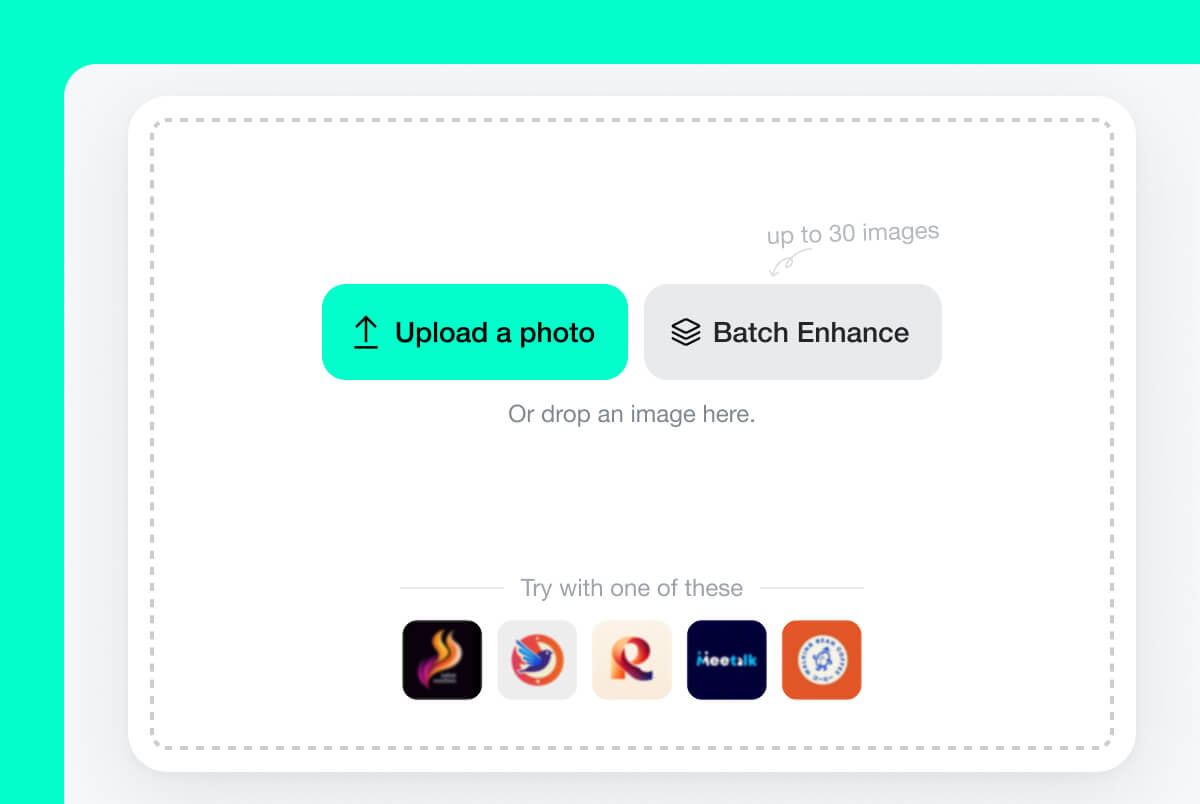
1 Step 1. Upload a low-resolution photo
Choose a JPG, JPEG, PNG, or WebP image from your device. Use a product photo, portrait, old family image, screenshot, or any picture that looks too small, blurry, or compressed.
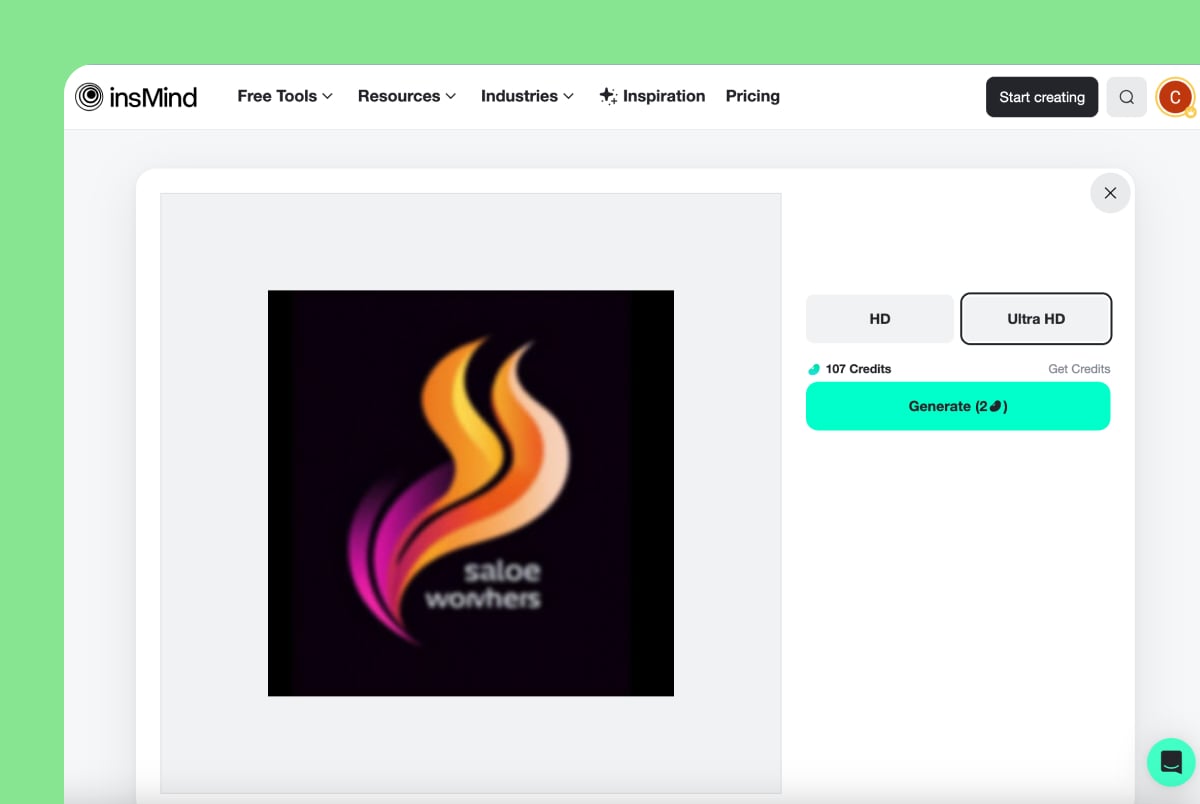
2
2 Step 2. Choose HD or Ultra HD
Select the quality option that fits your goal. Use HD for everyday sharing and Ultra HD when you need a larger, sharper file for print, product pages, presentations, or detailed viewing.
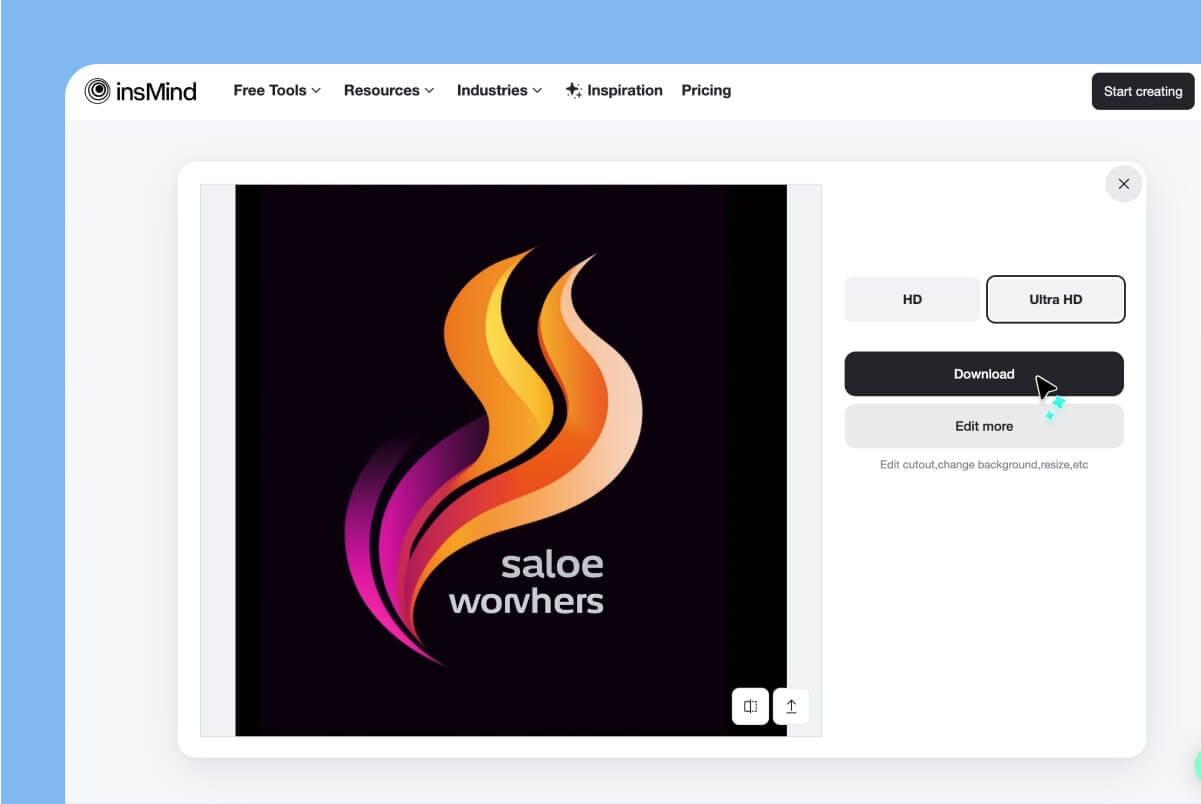
3
3 Step 3. Preview and download the HD image
Check whether the details, edges, and colors look natural. If the result fits your use case, download the HD photo and continue editing it in insMind if needed.
When to Use an HD Photo Converter
Use this page when the main problem is image quality: low resolution, blur, pixelation, compression, or files that look weak on modern screens.
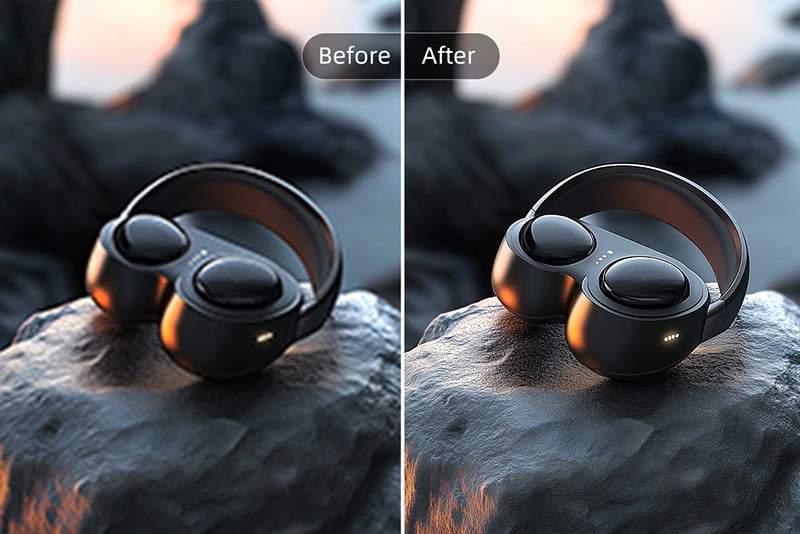
E-commerce product photos
Make product images clearer before uploading them to a store, marketplace, or ad campaign. HD conversion helps customers see texture, shape, labels, and details with more confidence.
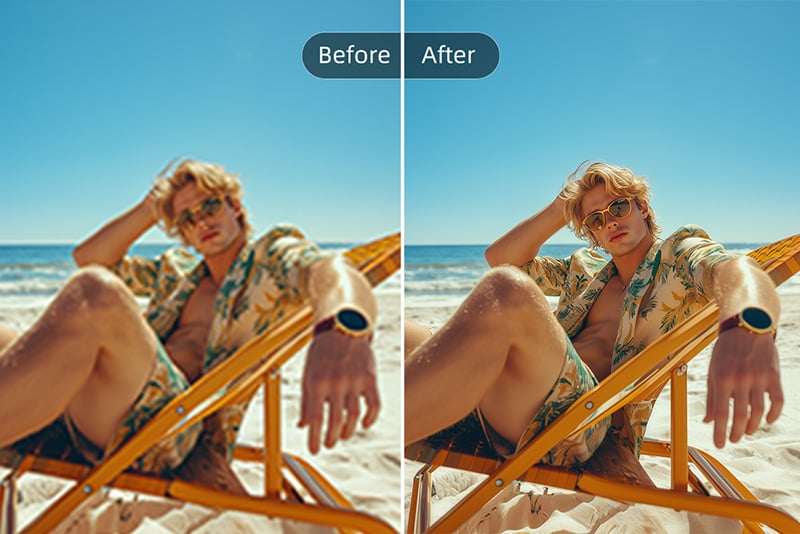
Social media and creator posts
Convert blurry phone shots, screenshots, thumbnails, and campaign visuals into sharper images before posting. Cleaner visuals help a feed look more consistent.
Marketing and presentations
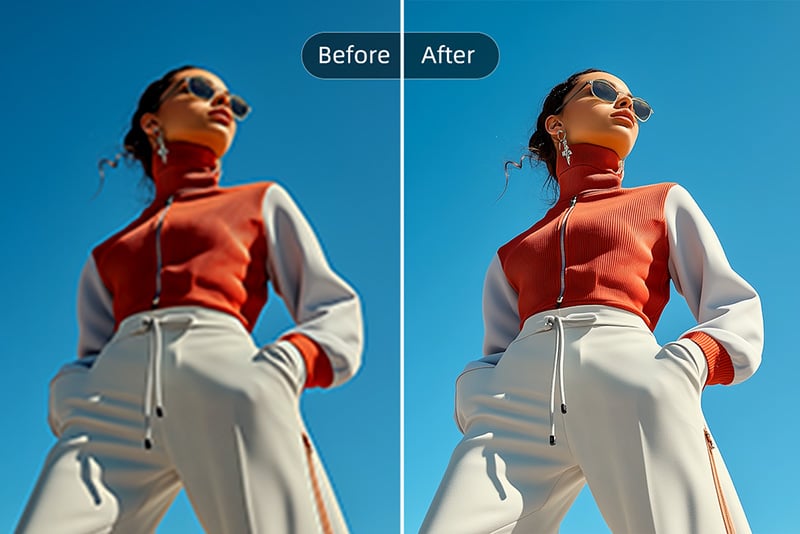
Improve low-res assets for landing pages, pitch decks, banners, brochures, and ads. Use HD conversion before final resizing, cropping, or adding text.
What the HD Converter Improves
The tool focuses on practical quality signals: resolution, sharpness, noise, color balance, and clarity. It does not replace a professional retouch, but it gives low-quality images a cleaner starting point.
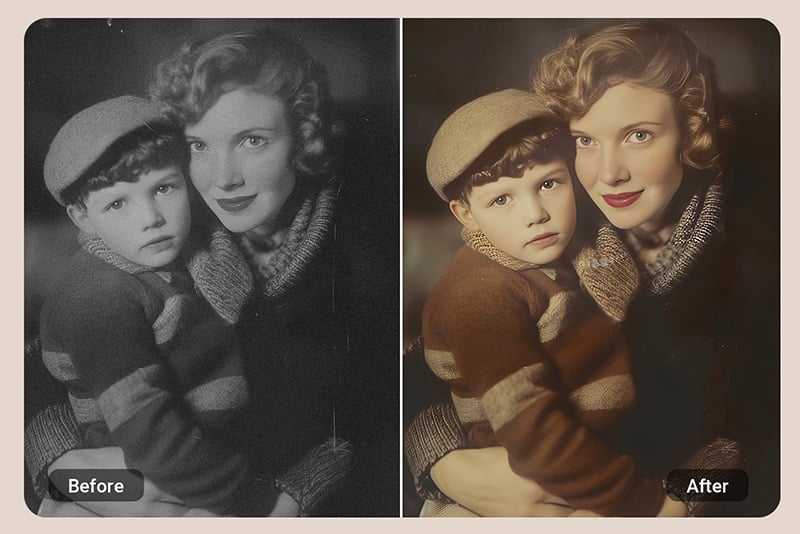
Restore old or blurry photos to HD quality
Use HD conversion for faded portraits, scanned family photos, compressed downloads, or images that look soft after being resized. It can recover visible detail and make the file easier to print or share.
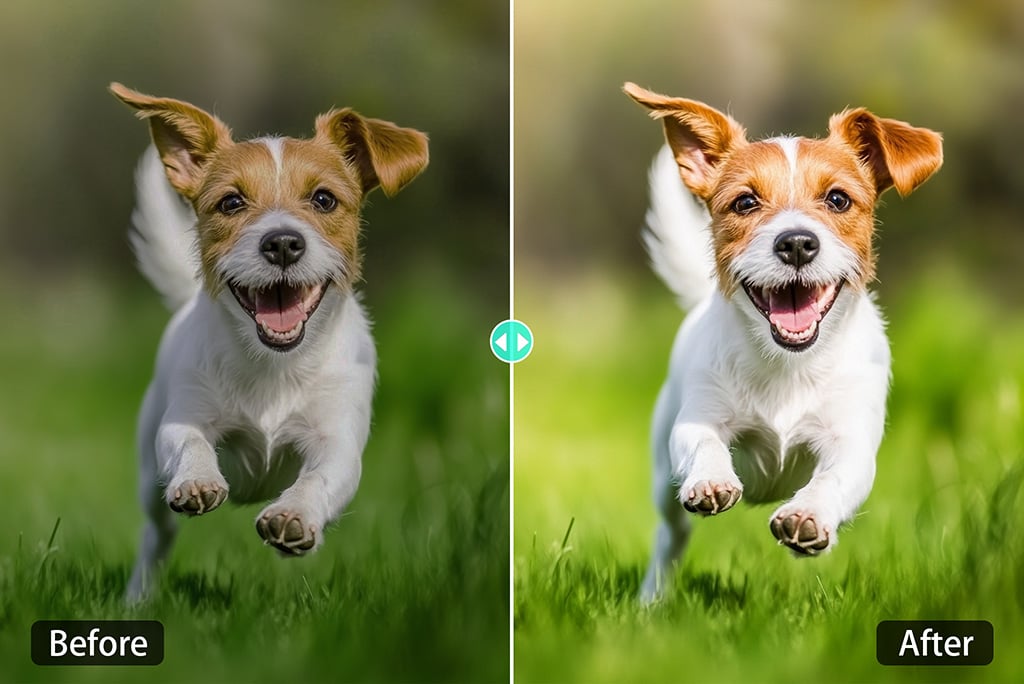
Improve color while converting to HD
A clearer image also needs balanced color. During conversion, insMind can make dull photos look more vivid by improving brightness, contrast, and overall tone without turning the image into a heavy filter.
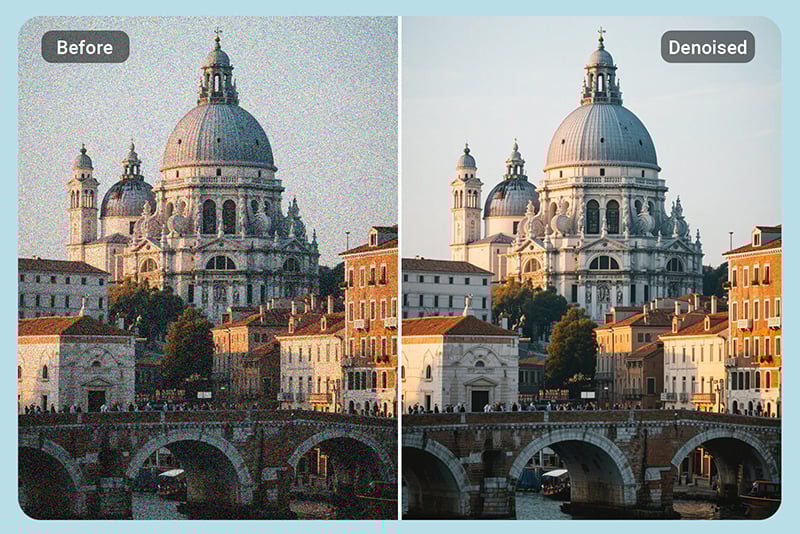
Reduce noise and grain
Low-light photos and compressed files often show grain. The HD converter helps reduce visual noise so faces, products, backgrounds, and textures appear cleaner.

Sharpen details for print and display
When an image looks too soft for a poster, slide, resume, or product page, convert it to HD before final export. This helps edges and small details hold up on larger screens or printed materials.
Why Choose insMind HD Photo Converter

Sharper HD output
Convert normal or compressed photos into clearer HD images with better resolution, edges, and visible details.

Fast browser workflow
Upload, choose quality, preview, and download without installing desktop software or learning a full editing suite.

Convert photos to HD quality online
Start with the online tool and check whether the HD result works for your photo before moving into heavier editing.

Common file formats supported
Use the HD converter for JPG, JPEG, PNG, and WebP photos, then continue editing or exporting in the format your project needs.

HD and Ultra HD options
Choose HD for a quick clarity upgrade or Ultra HD when you need a larger file for print, product pages, or detailed display.

Ready for HD screens
Make photos look cleaner on modern monitors, phones, TVs, presentations, portfolios, and online stores.
FAQs About HD Photo Converter
What is an HD photo converter?


An HD photo converter is an online tool that increases image resolution and improves clarity. It is useful for normal, blurry, compressed, or low-resolution photos that need to look sharper on screens or in print.
Can I convert a blurry picture into HD?
Yes, you can upload a blurry or low-quality photo and use insMind to make it clearer. Very severe motion blur may still have limits, so preview the result before downloading.
What image size can I upload?
The supported upload size can depend on the current editor settings and account limits. For the best result, upload the highest-quality original image you have instead of a screenshot of a screenshot.
How do I convert an image to 1080p or 4K online?
Upload your photo, choose HD or Ultra HD, and generate the enhanced version. Use Ultra HD when you need a larger, sharper file for print, presentations, or high-resolution display.
Can I convert an image to HD on mobile?
Yes. Open insMind in your mobile browser, upload the image, generate the HD version, and download it to your device. You can also continue editing in the mobile workflow.
How long does it take to make a photo HD?
Most single-image conversions finish in seconds. Batch jobs may take longer depending on the number and size of images.
What file formats does insMind support?
The HD photo converter supports common image formats such as JPG, JPEG, PNG, and WebP.
Why convert a photo to HD?
Use HD conversion when a photo is too small, blurry, grainy, or compressed for its purpose. It helps with product images, social posts, old photos, documents, presentations, resumes, and print projects.
Is this different from an image enhancer?
They overlap, but the intent is different. An HD photo converter focuses on turning a low-resolution image into a clearer HD, 1080p, or 4K-style output, while a general enhancer may also target color, lighting, face retouching, or restoration.
Related Tools for Sharper, Higher-Quality Photos
After converting a photo to HD, these tools can help with noise, pixelation, sharpening, resolution, backgrounds, and batch workflows.
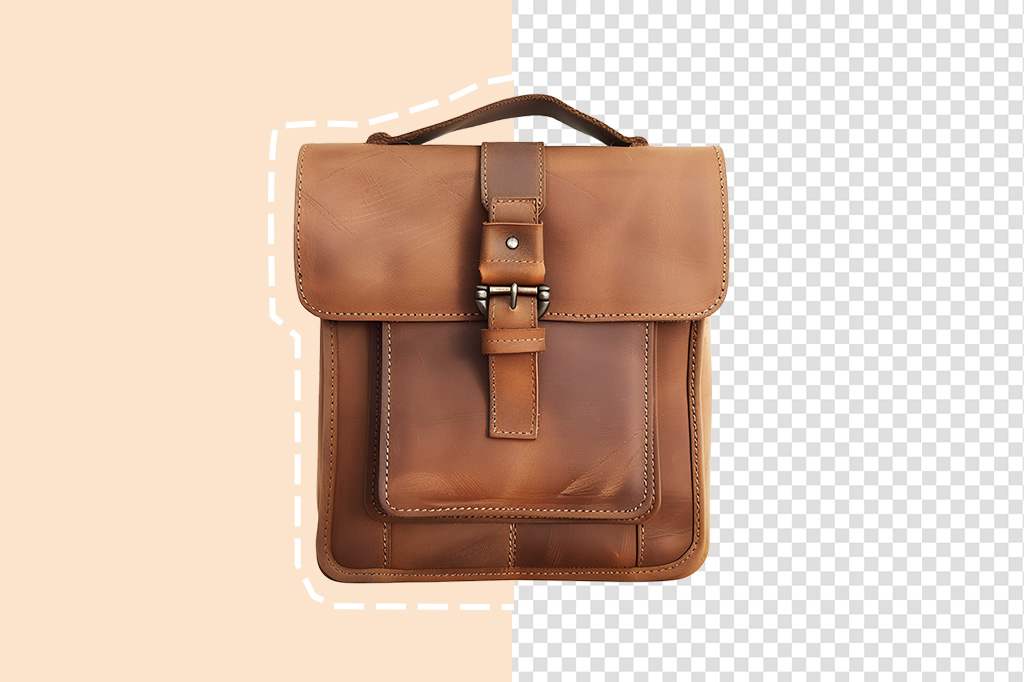
PNG Maker
Create transparent PNG assets after improving or preparing your image.
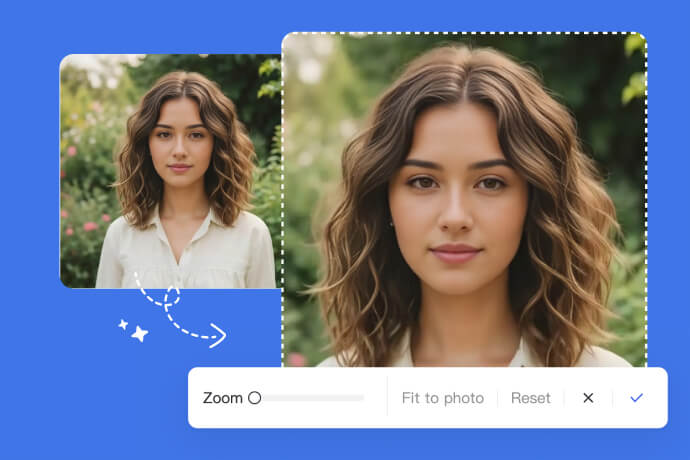
Image Zoomer
Zoom into photos while keeping the viewing experience clean and usable.
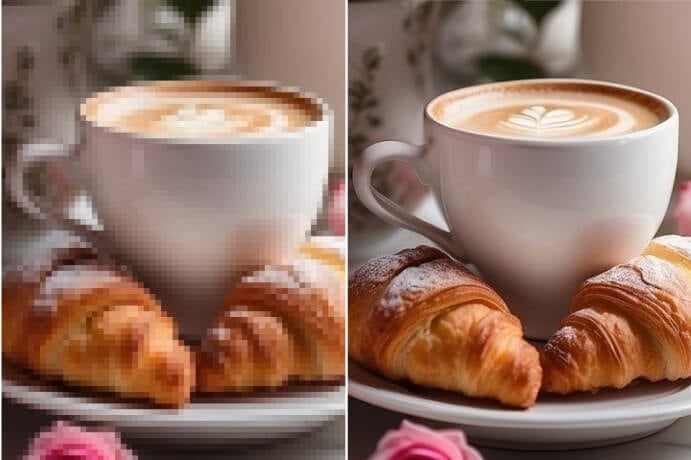
Unpixelate Image
Smooth pixelated photos and make blocky edges look cleaner.
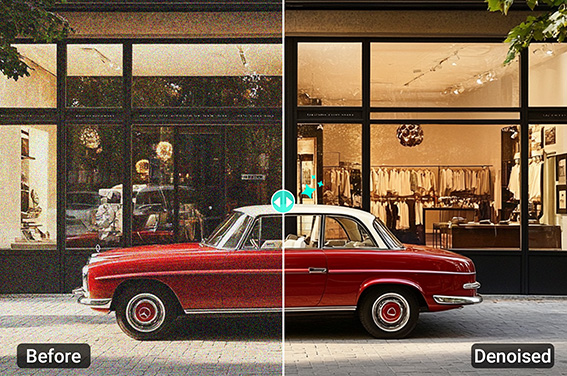
Denoise Image
Remove grain and noise from low-light or compressed photos before final export.

Batch Photo Enhancer
Enhance multiple images at once when you need consistent quality across a product set or content batch.
AI Image Expander
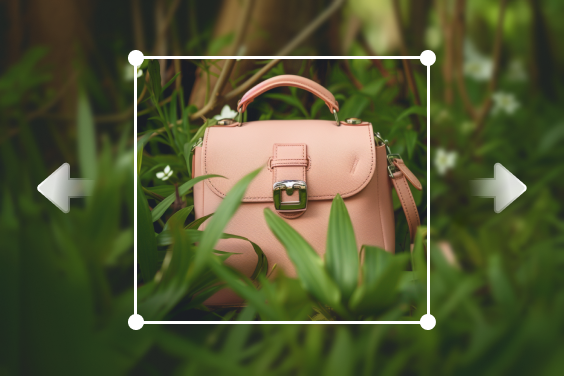
Extend image backgrounds when the HD photo needs a wider or taller layout.
Sharpen Image
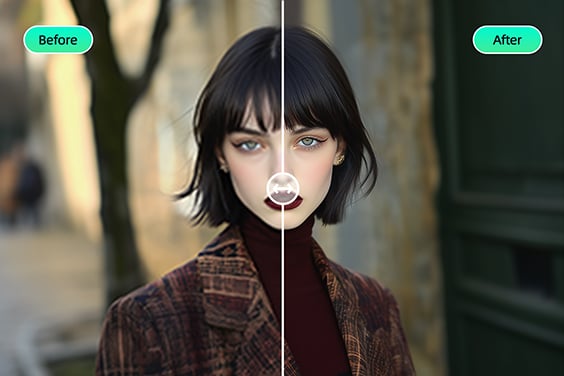
Make edges and details look crisper after resizing or compression.

AI Headshot Generator
Turn a selfie into a cleaner profile photo for work, resumes, and social platforms.

Increase Image Resolution
Increase resolution when your main goal is a larger, clearer image file.

AI Image Generator
Create a new image from a prompt when the original photo is not enough.
@Corey Dominguez