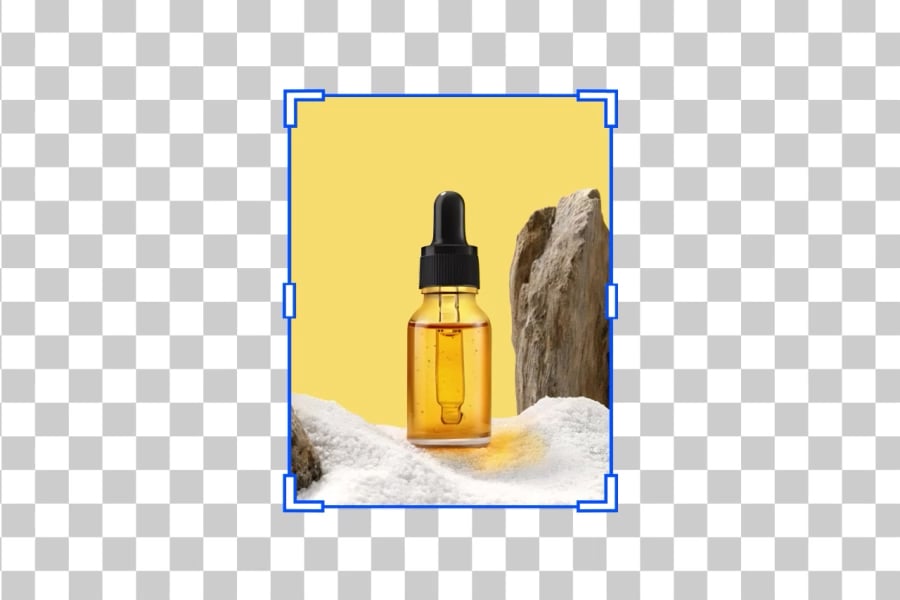
Need a wider product photo, social post, or banner crop? Upload your image, set the canvas, and let the AI image expander create new surrounding pixels that match the original scene.

Expand and Uncrop Images with AI
00:00
00:00
Or drop image here, paste image or URL
Try with one of these



00:00
00:00
Discover popular features


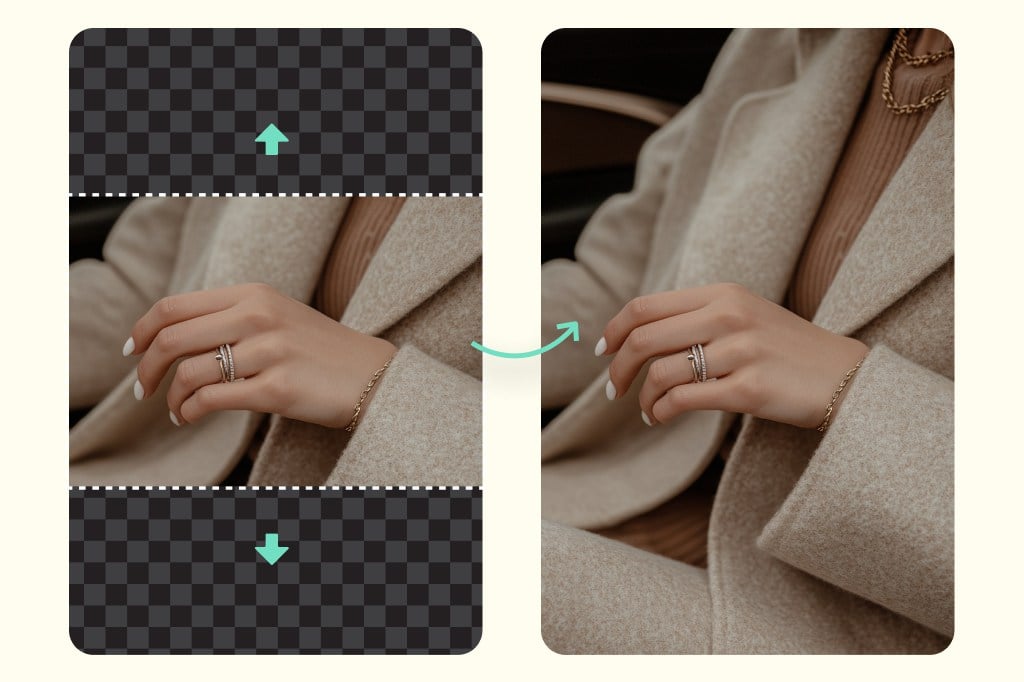
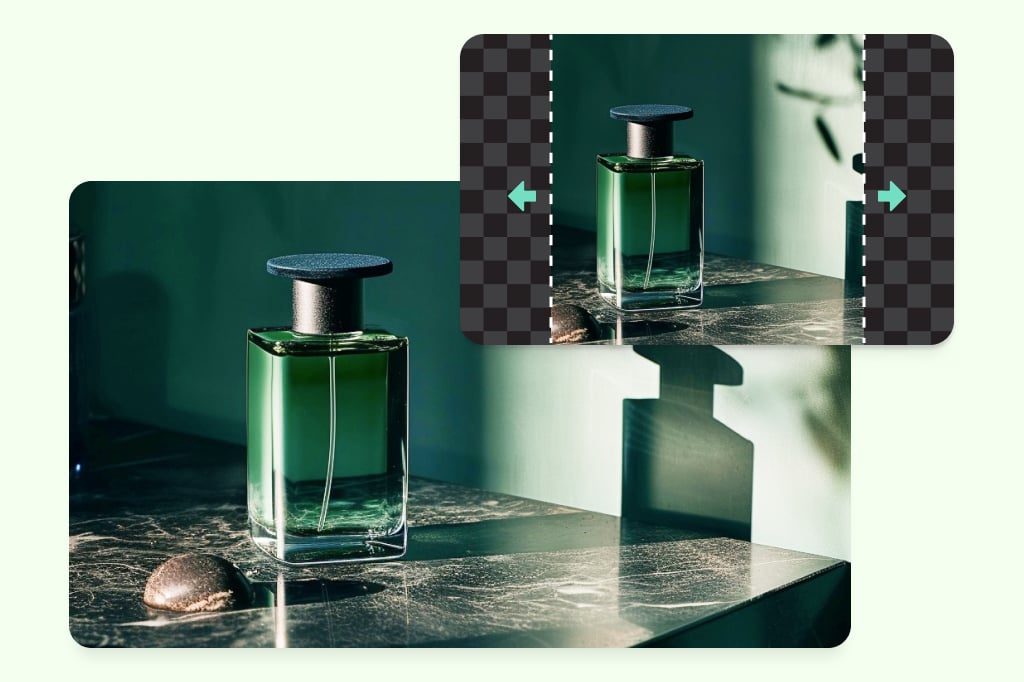
Extend Product Photos for Stores and Ads
Give product shots more breathing room for listings, ads, and marketplace layouts. Use the expanded background to fit square, portrait, or banner formats without manually rebuilding the scene.
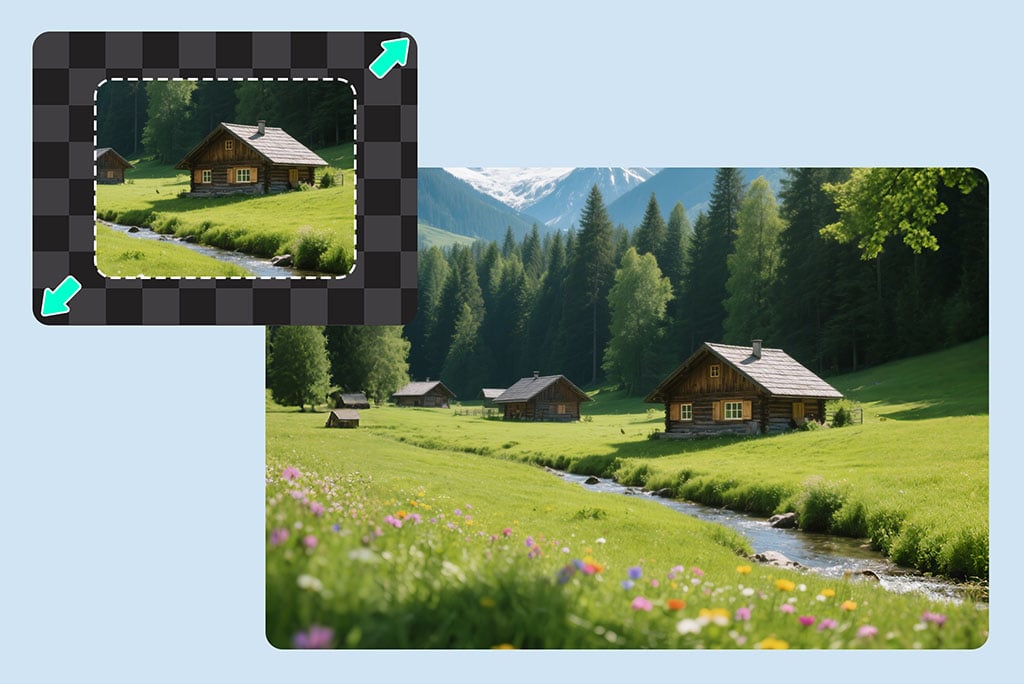
Fill Backgrounds Instead of Stretching Them
The AI background extender adds new visual content around the image rather than pulling the existing pixels out of shape. Check edges, shadows, and repeated textures before downloading.
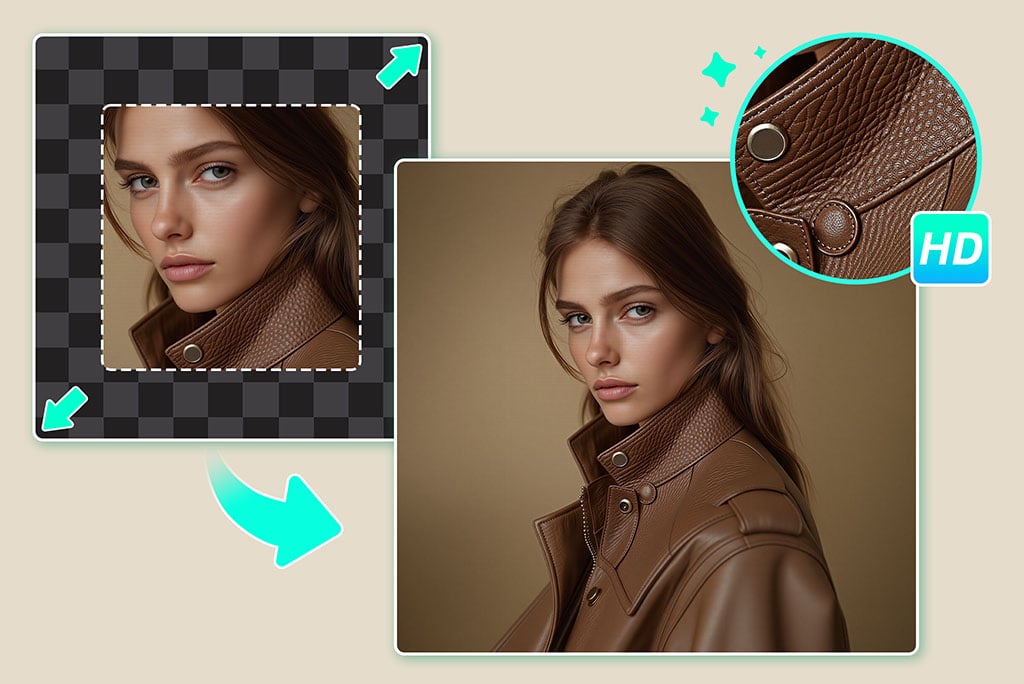
Reframe Photos for Social and Web Layouts
Turn a tight crop into a flexible image for stories, thumbnails, headers, and posts. Choose the ratio first so the extended result fits the platform you need.
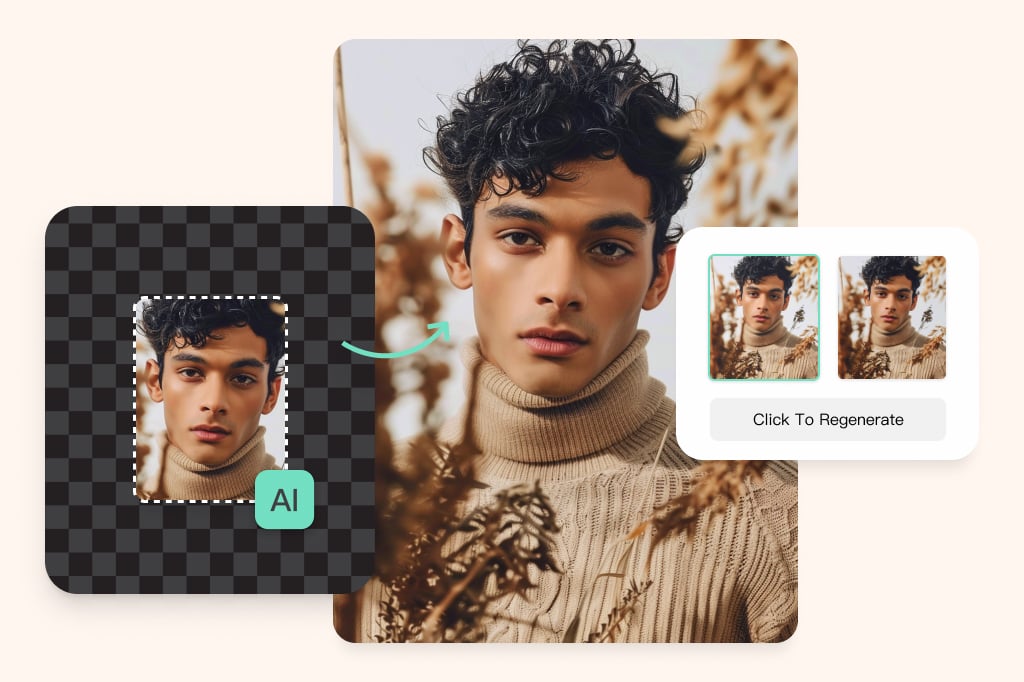
Uncrop Photos with Missing Edges
Use AI uncrop when a subject is too close to the border or part of the scene was cut off. The tool works best when the visible background gives the AI enough context to continue.
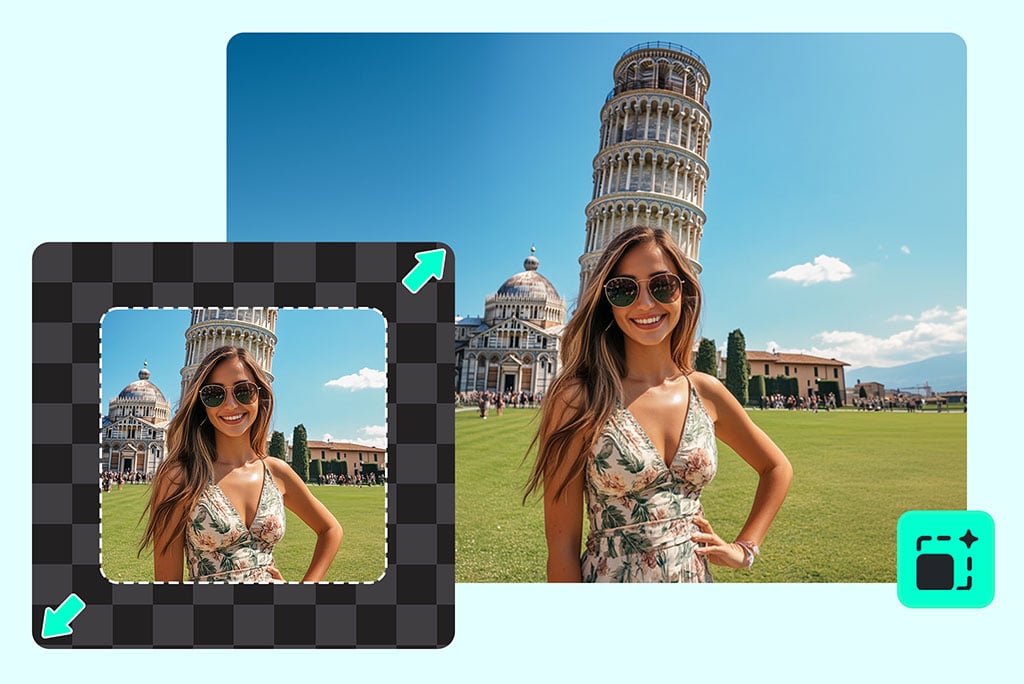
Expand Landscapes and Travel Photos
Add sky, ground, or side space to landscape shots when the original frame feels too narrow. Review the generated areas carefully if the scene has buildings, text, or detailed patterns.
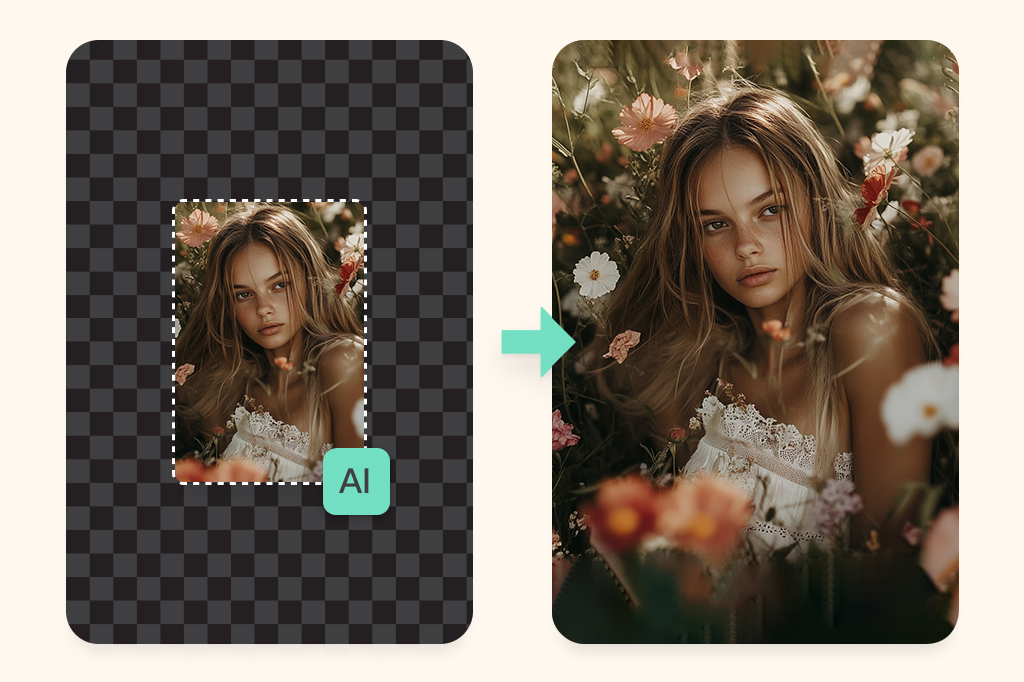
Use AI Outpainting for Creative Compositions
Create more room around portraits, products, artwork, or design drafts. For complex images, run another pass or adjust the crop when the first result needs cleaner edges.
Explore More AI Image Extender Features
How to Expand an Image with AI
1
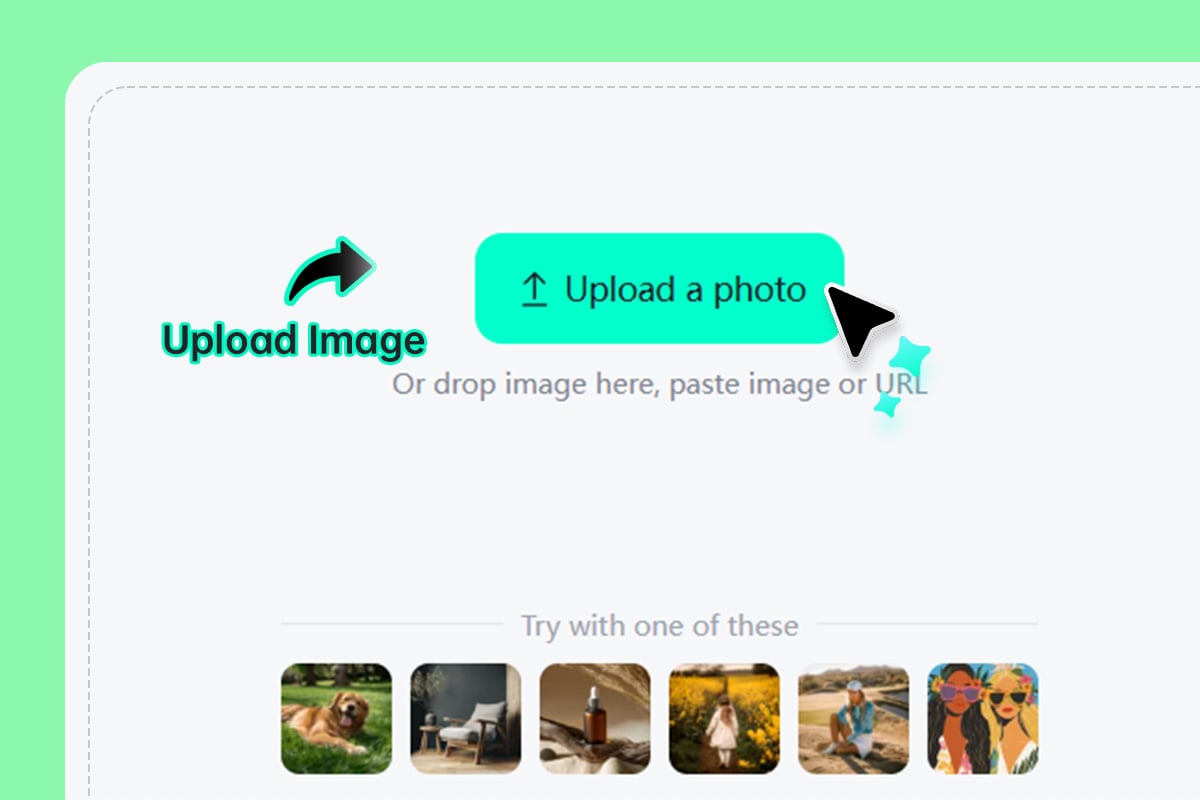
1 Upload your image
Click Upload a photo and choose the image you want to extend. Use a clear image with enough visible background around the subject.
2
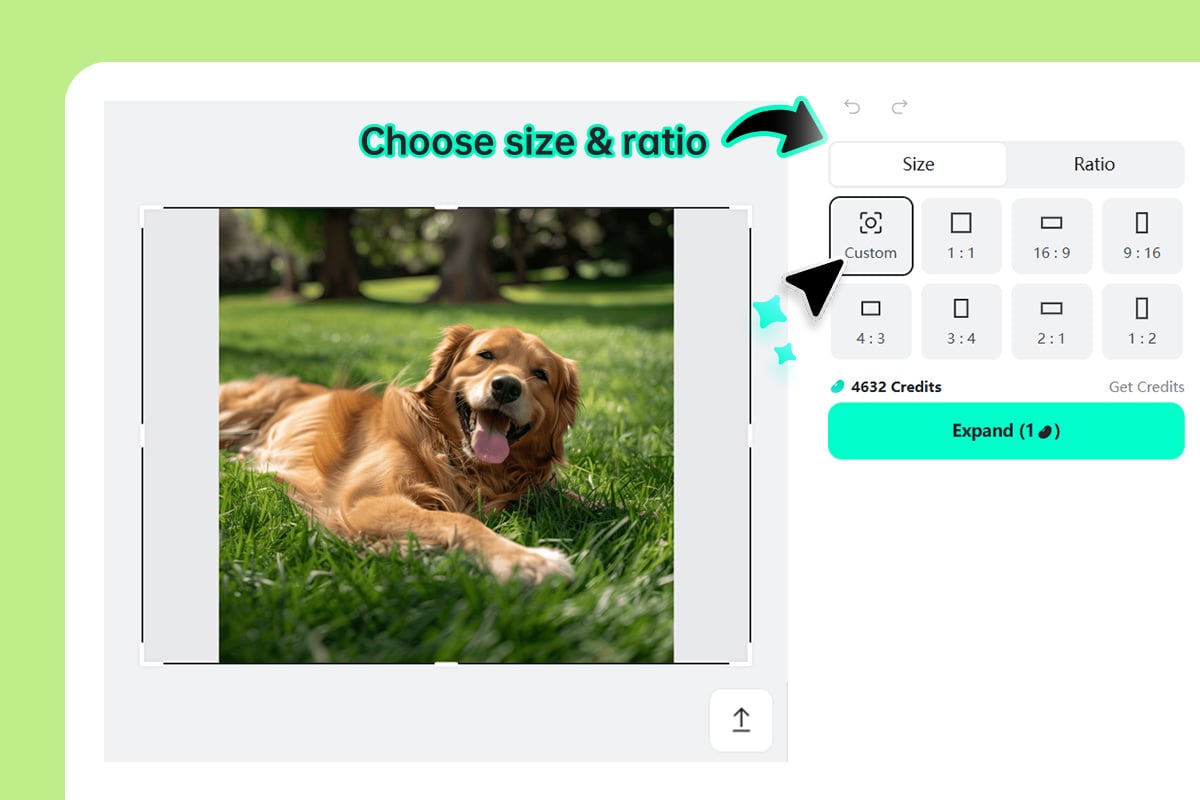
2 Choose the new size or ratio
Set the canvas size, ratio, or crop area before generating. Pick the format you need for a post, banner, product image, or profile layout.
3
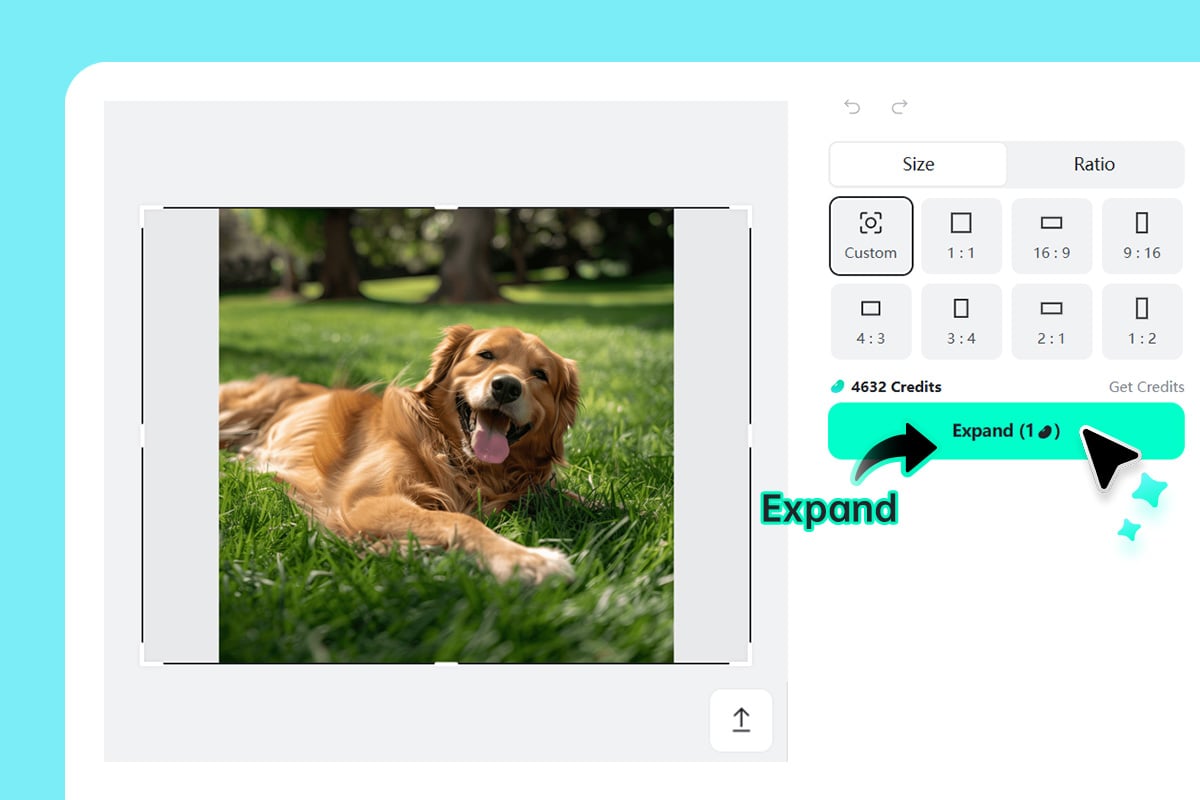
3 Generate the expanded image
Click Expand and let the AI fill the new edges. Preview the result and check repeated textures, faces, hands, text, and product details.
4
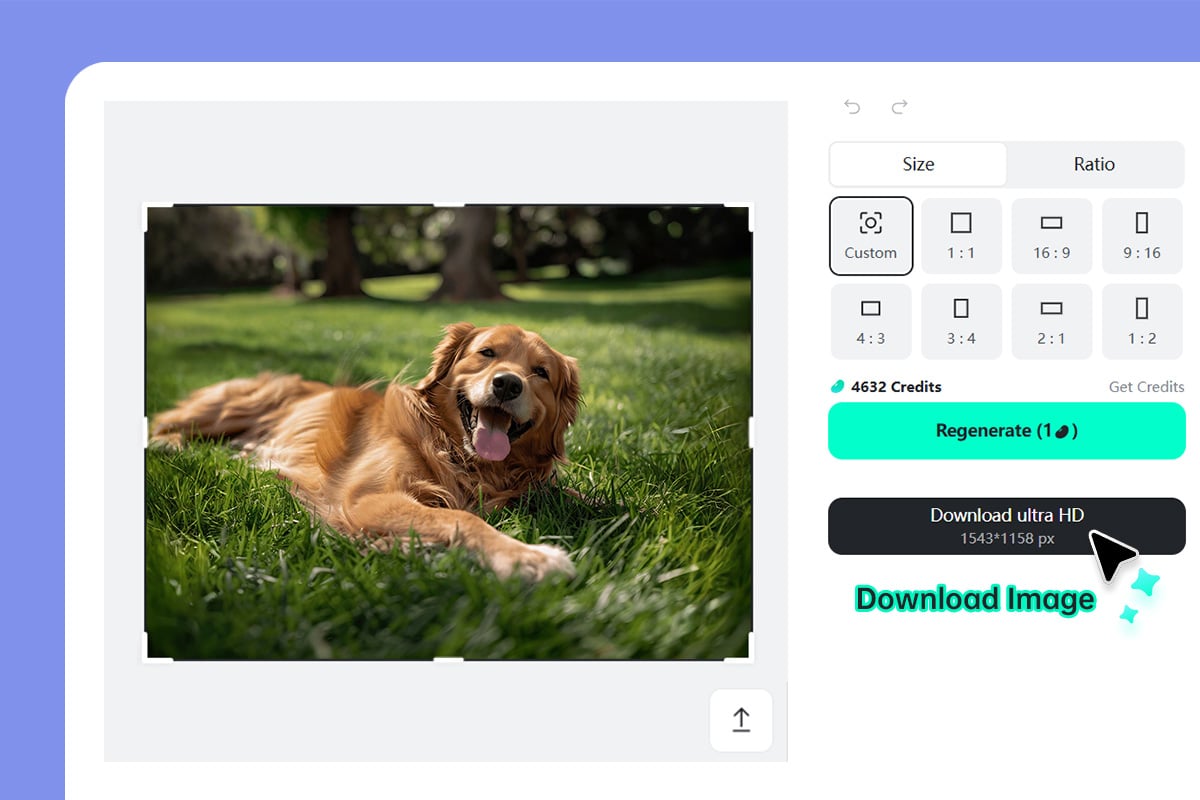
4 Download or try another pass
Download the result when the extended areas look natural. If an edge looks wrong, adjust the crop or run another pass before using the image.
Use AI Image Expander for Layouts, Products, and Crops
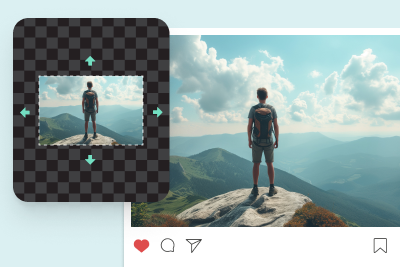
Extend photos when the original frame is too tight, the aspect ratio is wrong, or you need more background for a design.
Social media posts
Fit one image into square, portrait, or story layouts without cropping out the subject. Expand the background first, then add text or design elements where there is clean space.
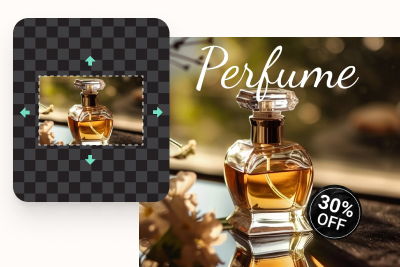
E-commerce product photos
Create extra margin around products for store listings, ads, and marketplace thumbnails. This is useful when the original image is too close-cropped for a clean layout.
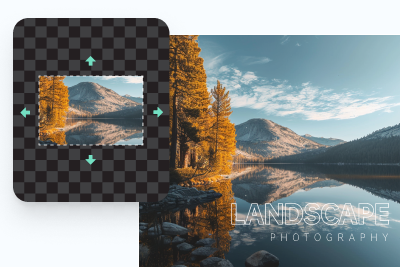
Photography and client edits
Recover framing space, adjust aspect ratios, or give a photo more room for print and web delivery. Keep a careful eye on detailed edges and patterns.
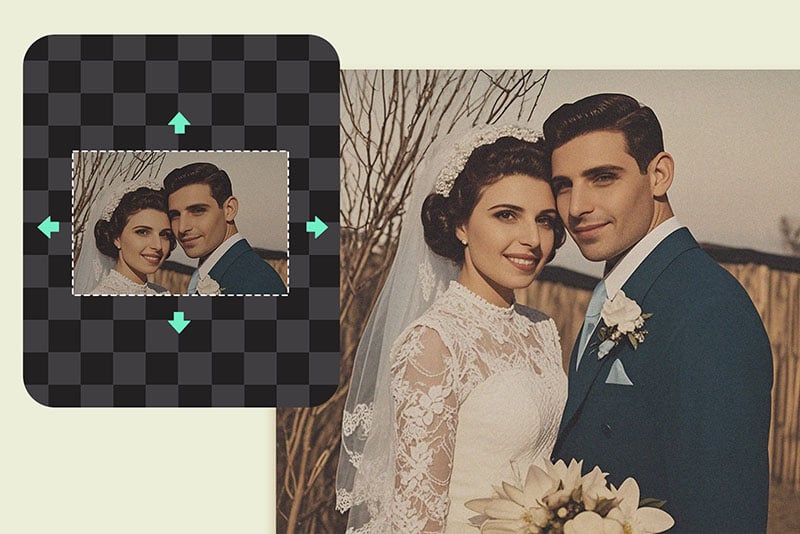
Old or damaged photo edges
Use AI expansion when the sides of an old image are missing or too tightly cropped. For scratches, stains, or face restoration, pair this with a dedicated restoration or enhancer tool.
Why Use insMind AI Image Expander?

Canvas control before generation
Choose the size or ratio you need before AI fills the new area, so the result is built for your final layout.

Useful for non-designers
The workflow is simple: upload, expand, preview, and download. No manual background painting is required for straightforward edits.

Works in the browser
Use the tool online for product images, social posts, portraits, and travel photos without installing a desktop editor.
FAQs About AI Image Expander
What does an AI image expander do?


It extends the canvas of an existing image and generates new background or edge content around it. It is useful for uncropping photos, changing aspect ratios, and creating more layout space.
Can I extend the background of a photo online?
Yes. Upload the photo, choose the new canvas size, and generate the expanded result online. Check the preview before downloading, especially when the background has text, patterns, or detailed objects.
Is this the same as enlarging an image?
No. Image expansion adds new surrounding content, while image enlargement increases the resolution or size of the existing image. If you only need more pixels, use an AI image upscaler instead.
Can I use it to uncrop a photo?
Yes. AI uncrop works best when the visible part of the photo gives enough context for the missing edges. Very complex scenes may need a second pass or manual cleanup.
Will the expanded image always look natural?
Results depend on the source image. Simple backgrounds, skies, walls, and product scenes usually work better than faces, hands, logos, text, or repeating patterns near the edge.
Can I expand product images for e-commerce?
Yes. It can add margin around product photos for store listings, thumbnails, ads, and banners. Review shadows and product edges before publishing the final image.
Is insMind AI image expander free to try?
You can start expanding images online from this page. Check the download options in the live tool if you need higher resolution or watermark-free output.
More Tools for Expanding and Improving Images
Try related tools when you need sharper resolution, cleaner backgrounds, or object-level edits after expanding a photo.
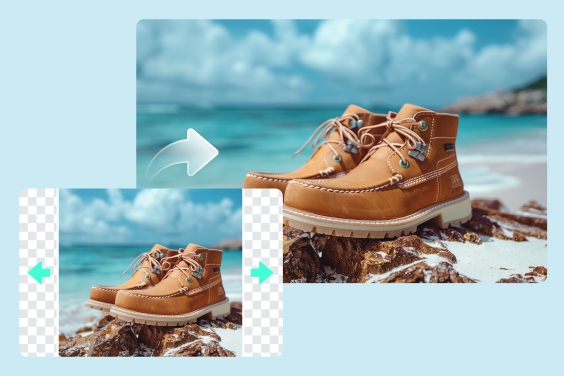
Uncrop Photo
Unlock the power of insMind's free AI tool and uncrop your photos effortlessly.
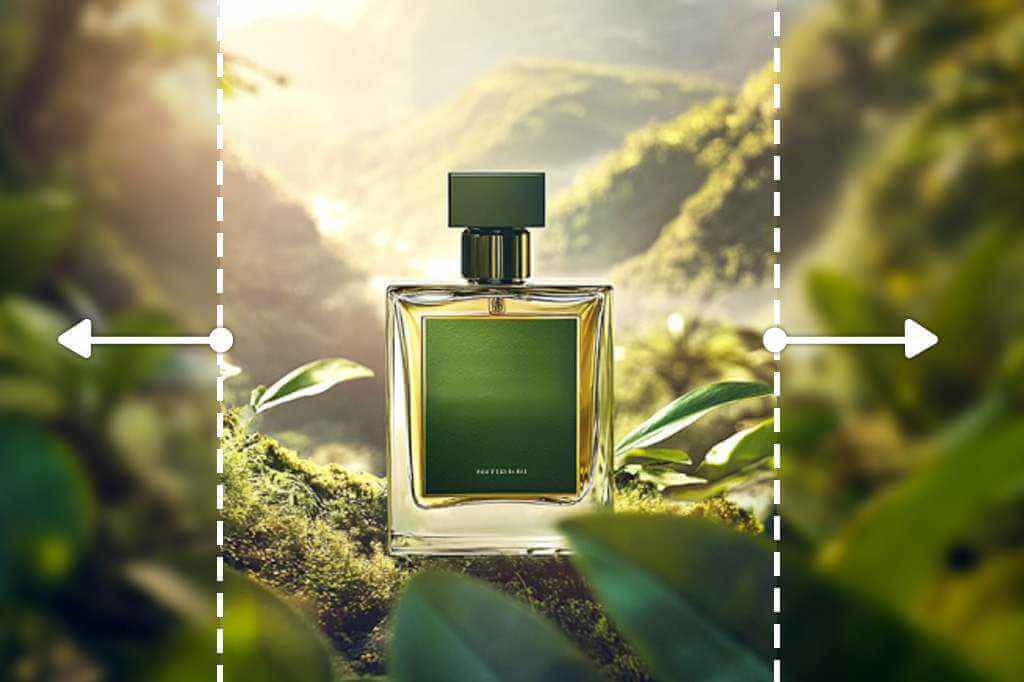
AI Outpainting
Extend and outpaint your images with AI in seconds
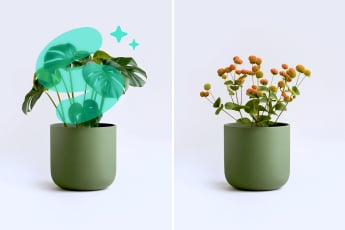
AI Replace
Easily erase and replace elements in your images with AI for seamless edits and perfect results.
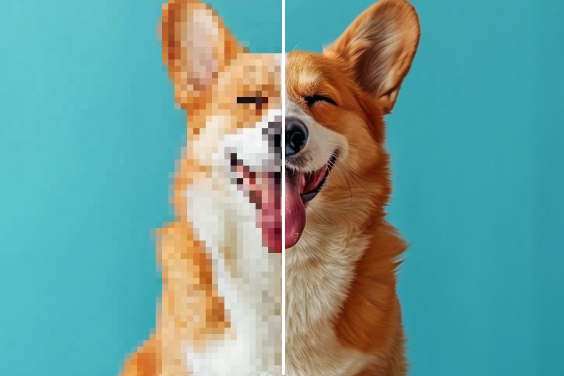
AI Image Enhancer
Increase your photo's resolution without quality loss.
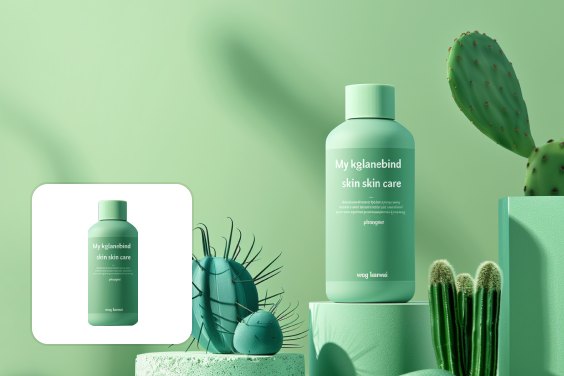
Al Background Changer
Easily change backgrounds with our AI-powered Background Generator. Create the perfect backgrounds in seconds.
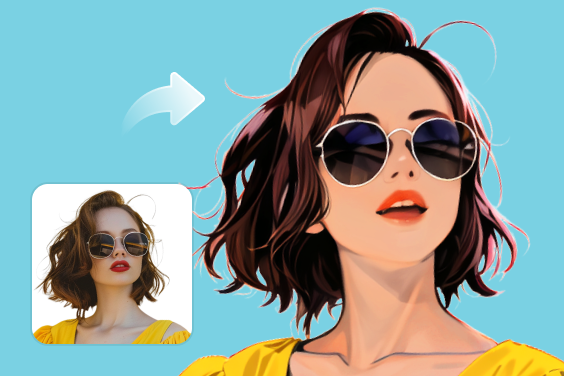
AI Photo Filter
Apply stunning AI photo filters to transform your images with unique artistic styles and effects.
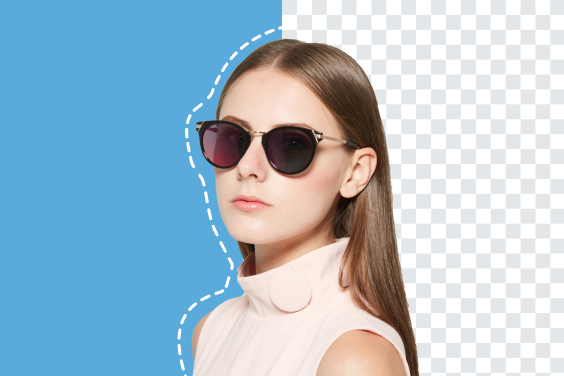
Remove Image Background
Easily remove backgrounds with one click and add any background you like.
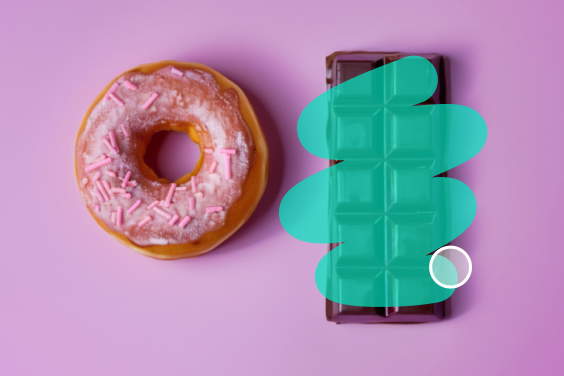
AI Magic Eraser
Instantly remove objects, people, text, and any element you want from photos.
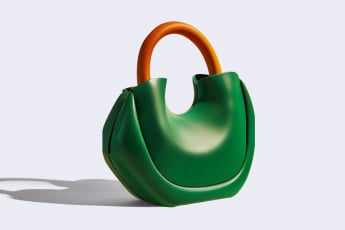
Add Shadow to Image
Effortlessly add realistic shadows to your images for depth and realism.
Al Image Generator
Transform your text into stunning images with a simple prompt.
Al Image Upscaler
Upscale and sharpen your images with AI for clearer, high-quality photos without losing detail.
“Used it to extend product shots for Amazon. Worked perfectly.”
@Michael