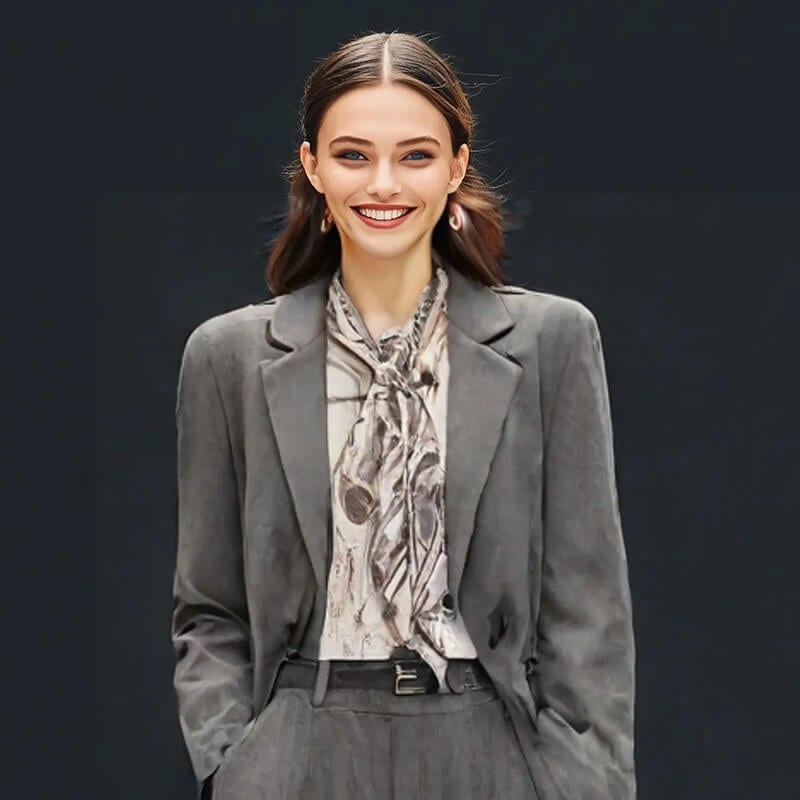
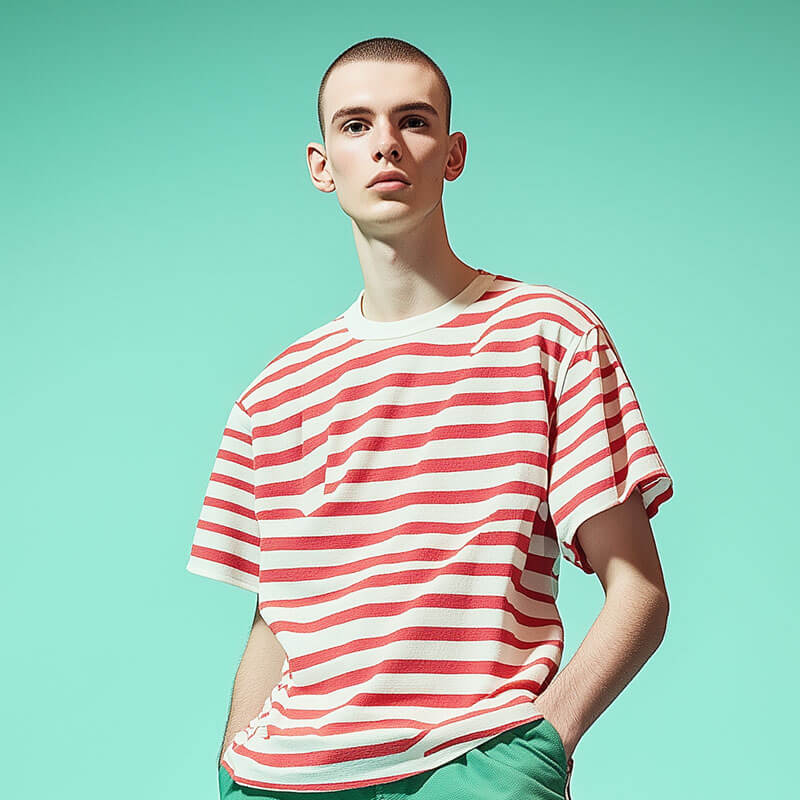
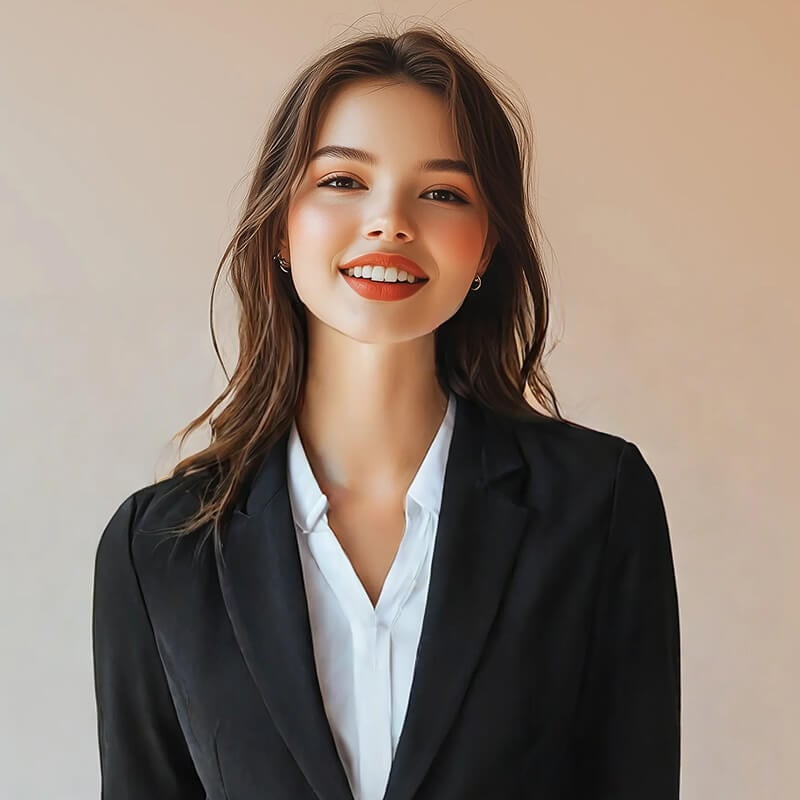
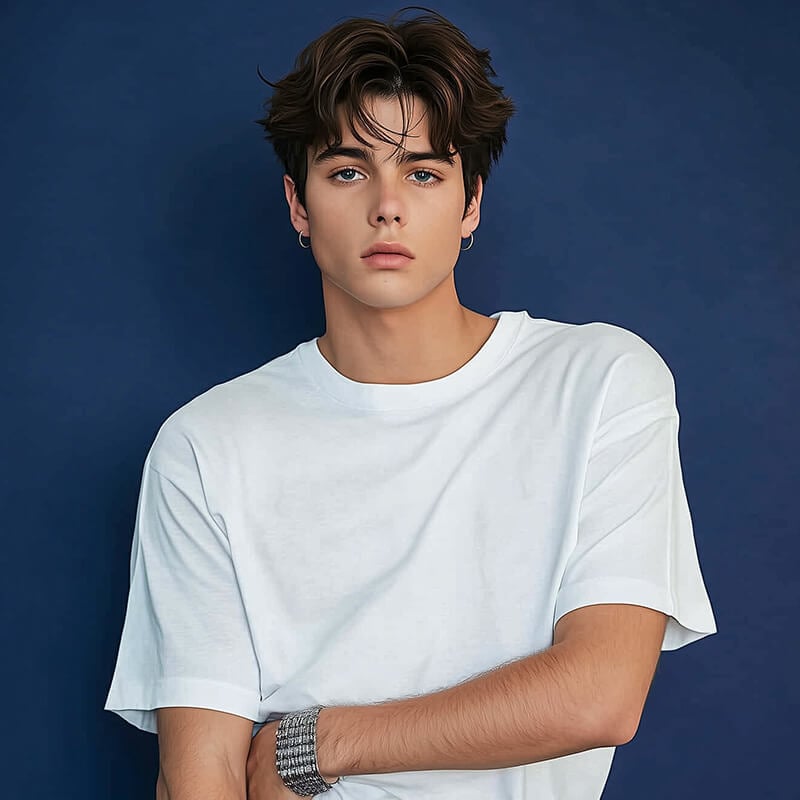
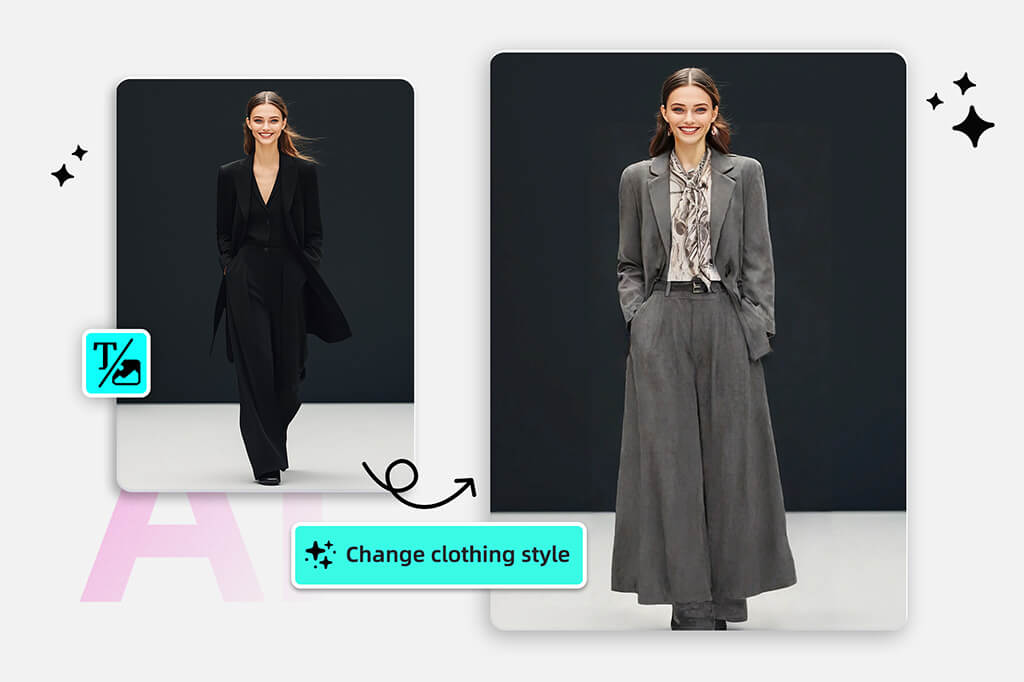
Free AI Clothes Changer to Change Outfits in Photos

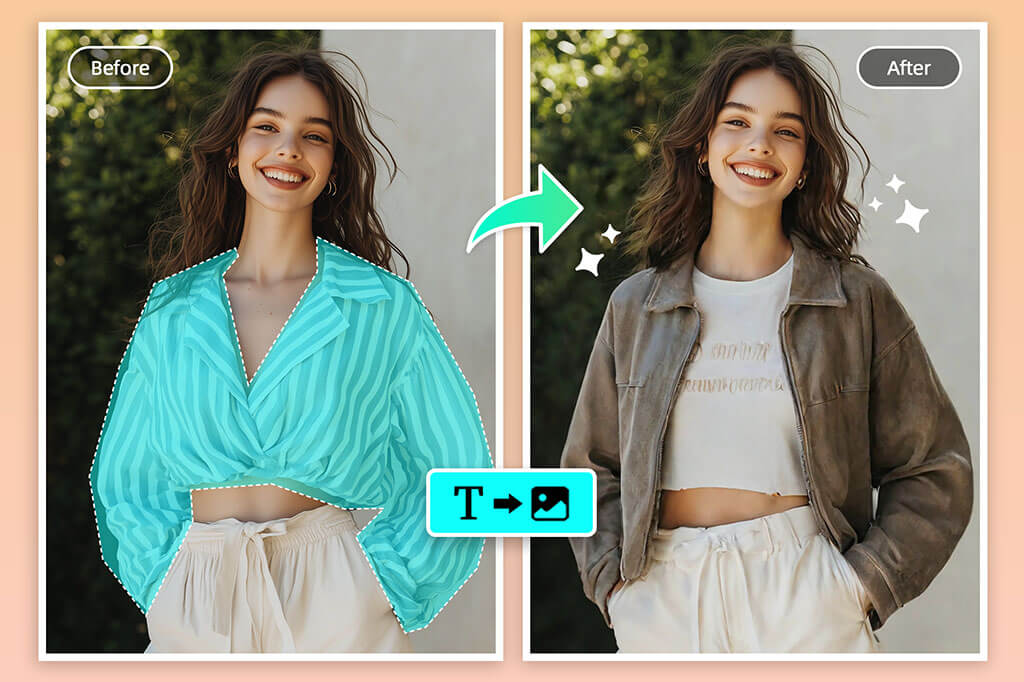
Upload a portrait, brush over the clothing you want to replace, and describe a new shirt, dress, suit, or costume. Preview the outfit change before downloading.

Free AI Clothes Changer to Change Outfits in Photos
Or drop image here, paste image or URL
Try with one of these
AI Clothes Changer 1
AI Clothes Changer 2
AI Clothes Changer 3
AI Clothes Changer 4
AI Clothes Changer 5
Free AI Clothes Changer to Change Outfits in Photos

How to Change Clothes in a Photo with AI

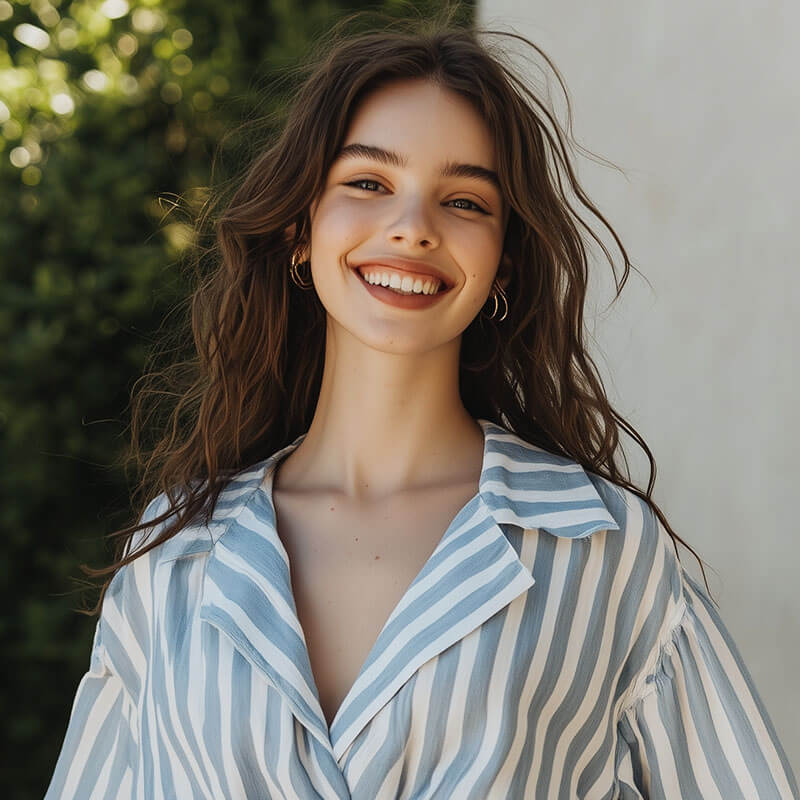
Upload a Clear Portrait
1

1 Upload a Clear Portrait

Choose a front-facing or slightly angled photo with one person and the clothing clearly visible. A sharp waist-up or full-body image gives the editor more useful detail around sleeves, necklines, and garment edges.
Brush Over the Clothes to Replace
2

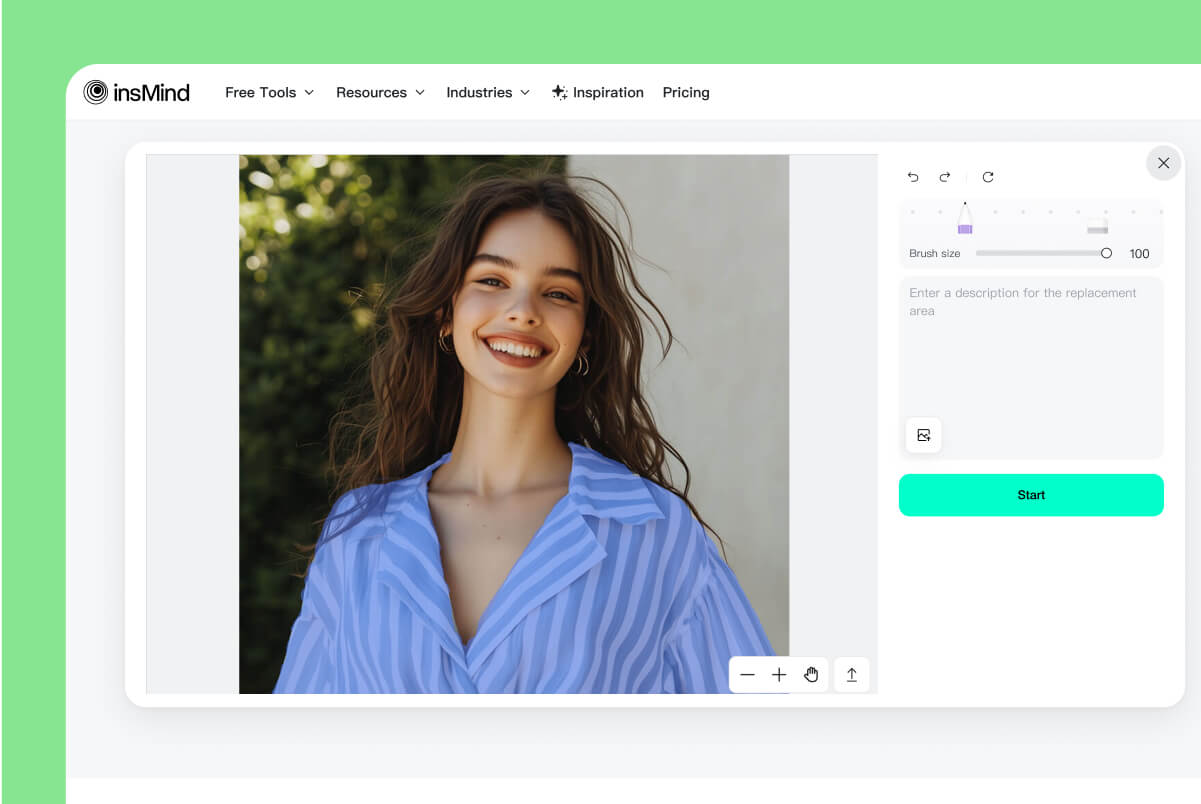
2 Brush Over the Clothes to Replace

Mark the shirt, dress, jacket, pants, or other clothing area you want to change. Keep the brush off the face, hair, hands, and background unless they are part of the intended edit; zoom in around narrow straps and overlapping arms.
Describe the New Outfit
3

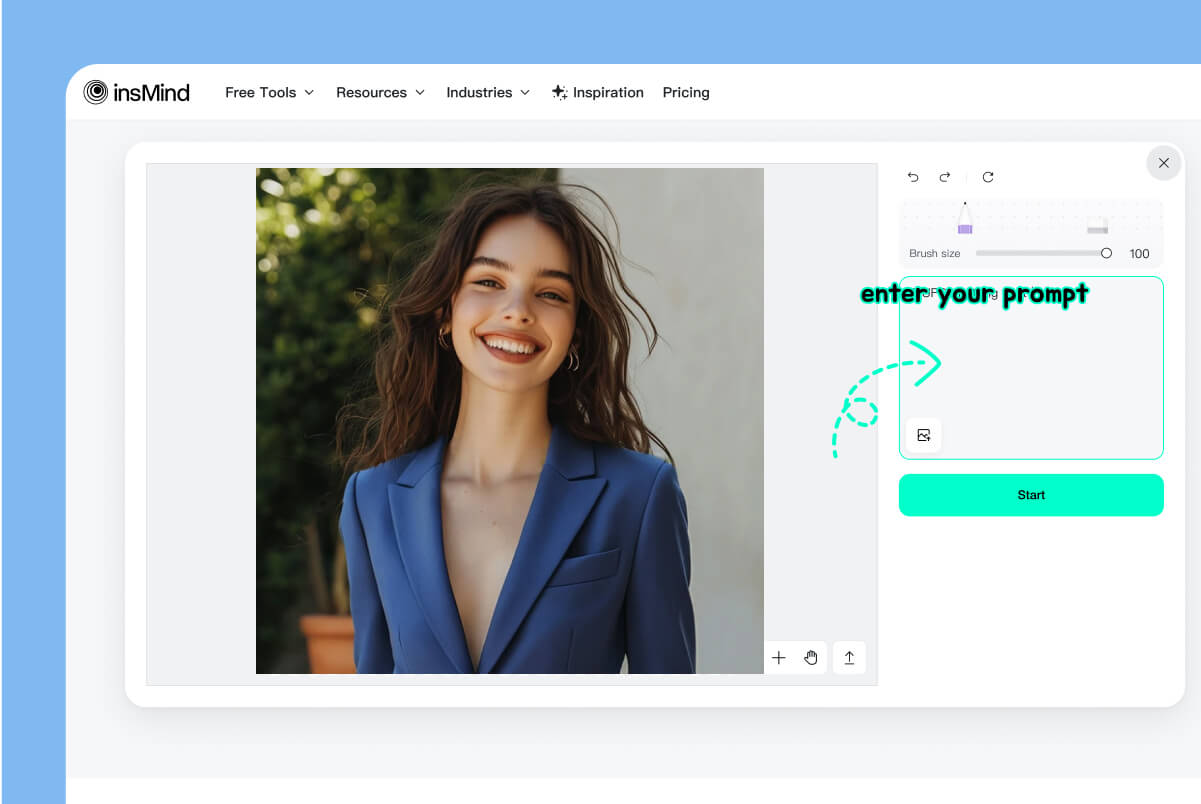
3 Describe the New Outfit

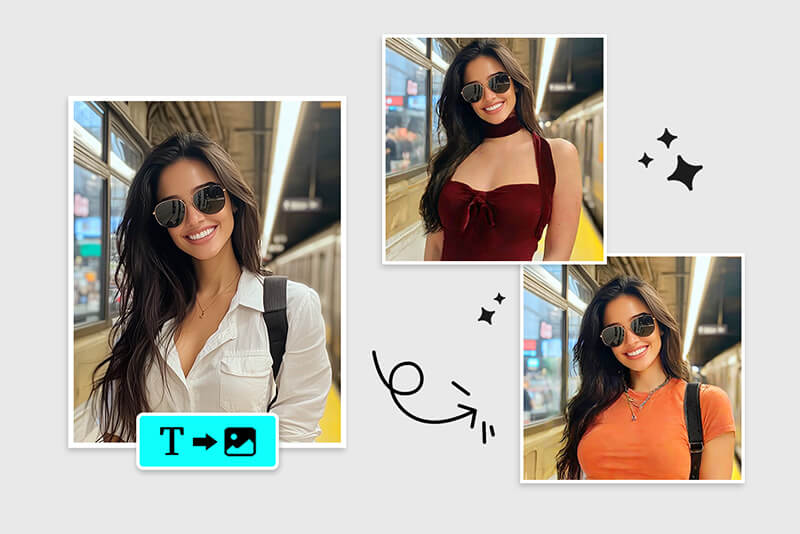
Write a specific prompt with the garment type, color, fit, fabric, pattern, and occasion. For example: ‘navy single-breasted business suit, white shirt, tailored fit’ gives clearer direction than ‘change clothes.’
Generate, Inspect, and Download
4

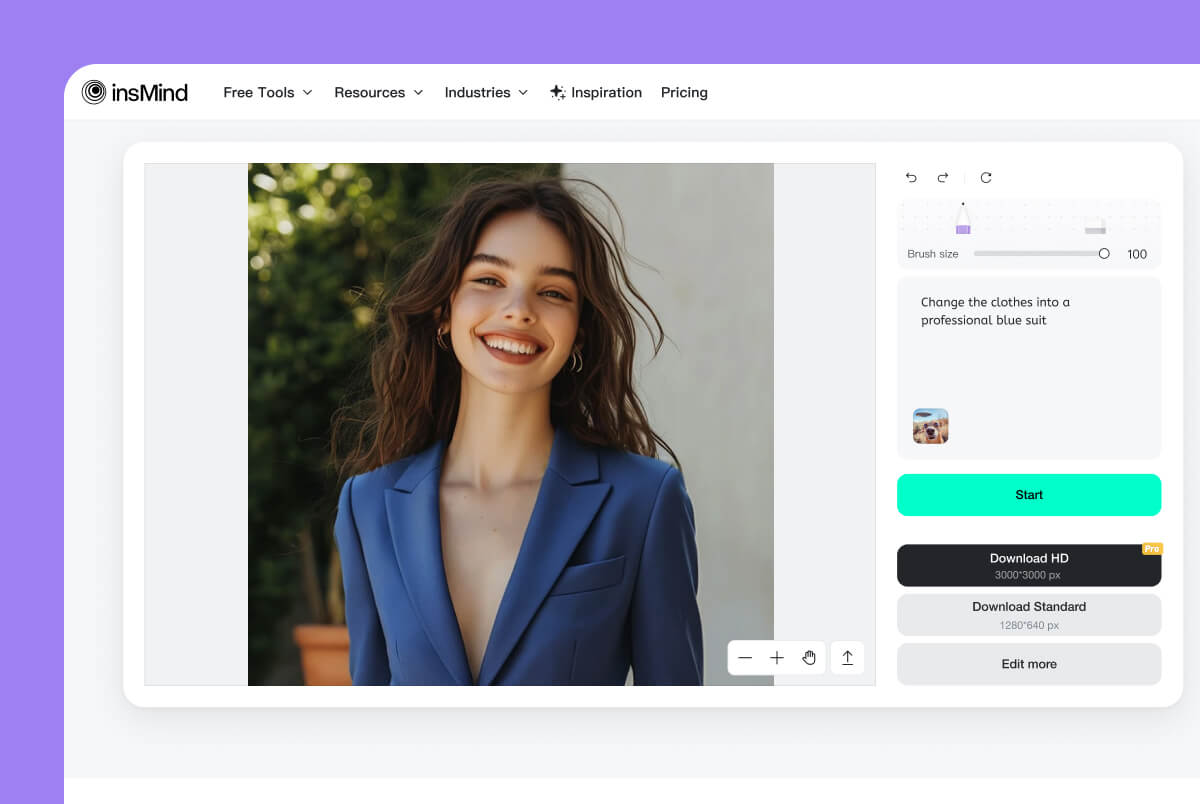
4 Generate, Inspect, and Download

Start the AI clothes change, then inspect the neckline, sleeves, hands, waist, logos, and background edges. If part of the original outfit remains or a detail looks distorted, refine the brushed area or prompt and generate another version before downloading.
Change a Shirt, Dress, Jacket, or Full Outfit

Change a Shirt, Dress, Jacket, or Full Outfit

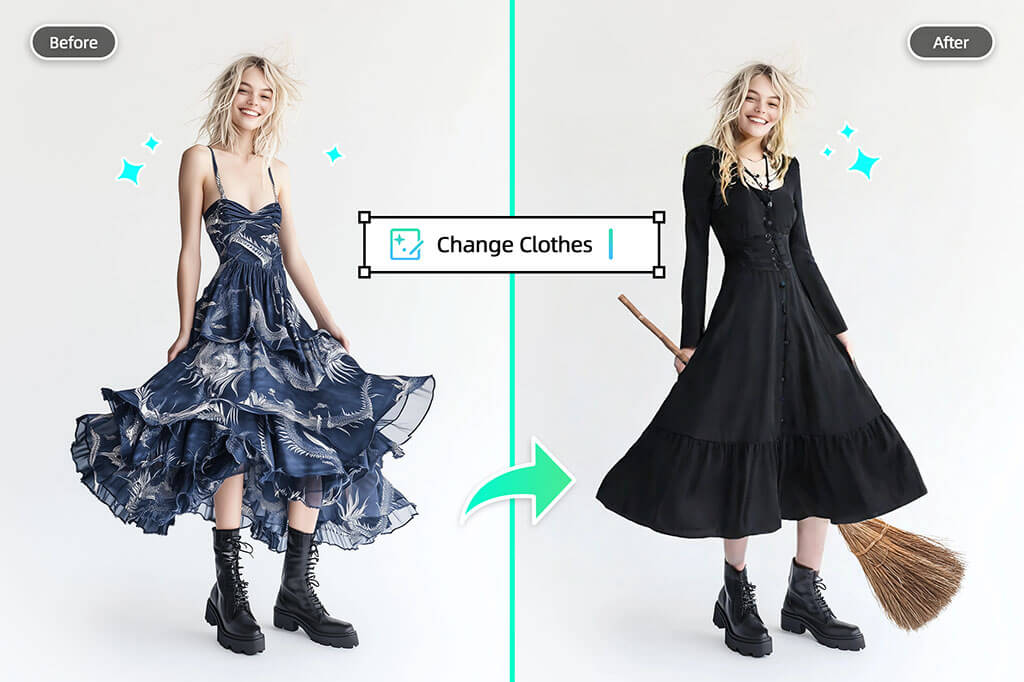
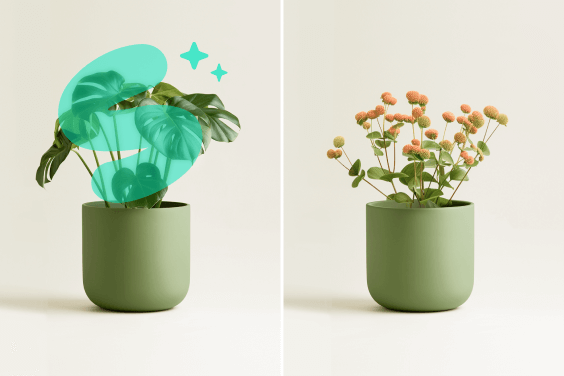
Use the brush to replace one visible garment or cover a larger clothing area for a complete outfit change. The person, pose, and unselected parts of the photo remain the visual reference while the new clothing is generated from your prompt.


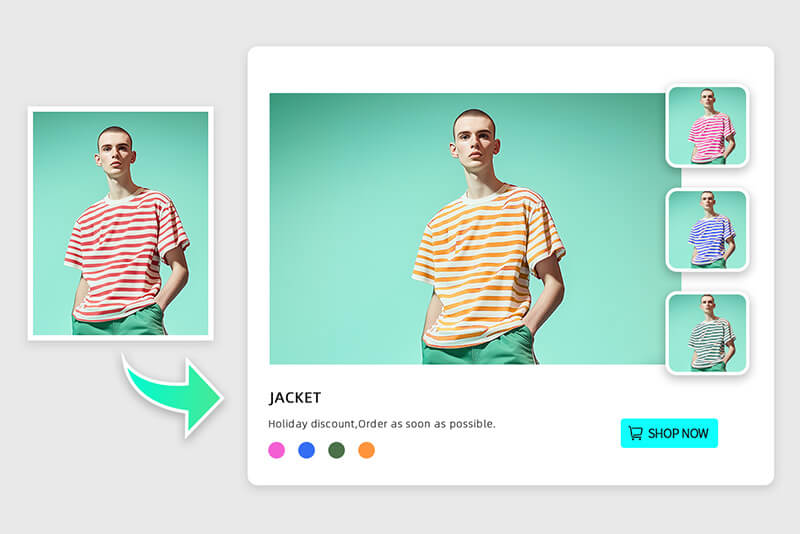
If the garment already works and you only need a different shade, use the clothes color changer instead of replacing the whole design.
Use a Photo Dress Changer to Explore New Styles

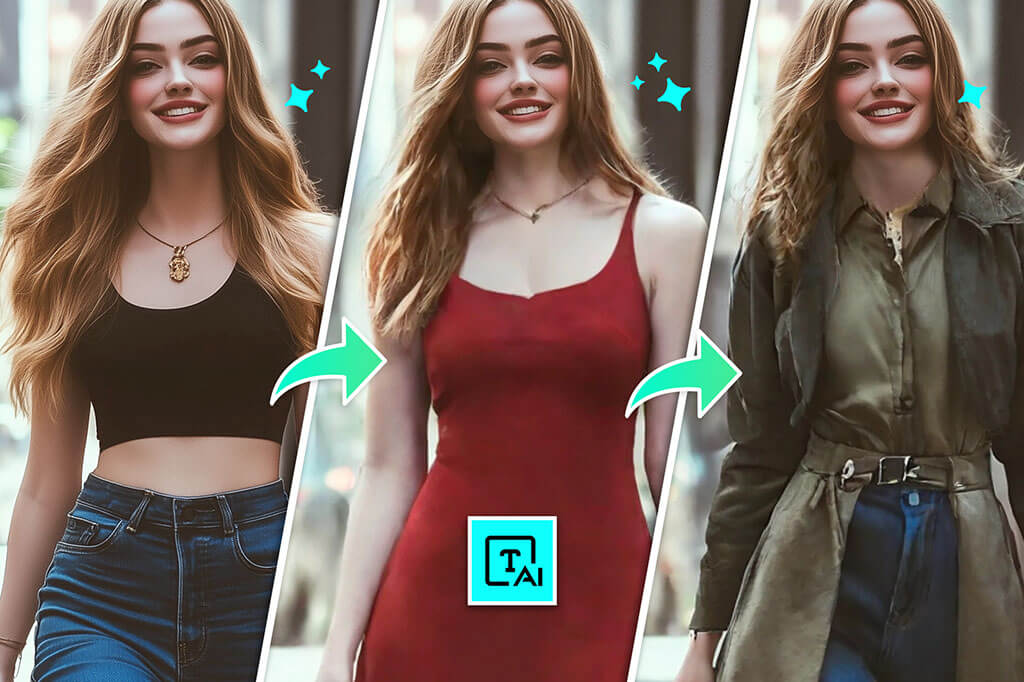
Use a Photo Dress Changer to Explore New Styles

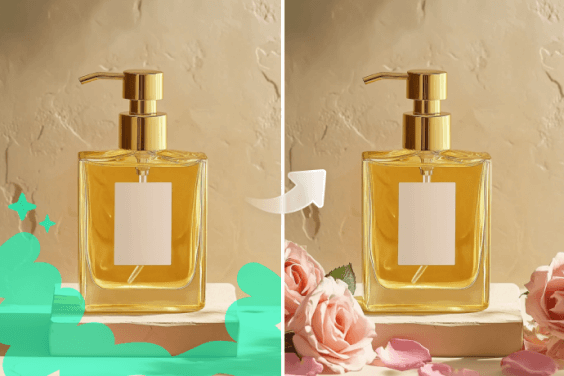
Turn the same portrait into dress, streetwear, vintage, formal, or seasonal variations without rebuilding the entire image. Describe concrete details such as silhouette, sleeve length, fabric, print, and color so each version has a distinct direction.


Need an outfit concept before editing a portrait? Start with the AI outfit generator, then use this page when you want to change clothes in an existing photo.

Change Casual Clothes to Formal Attire

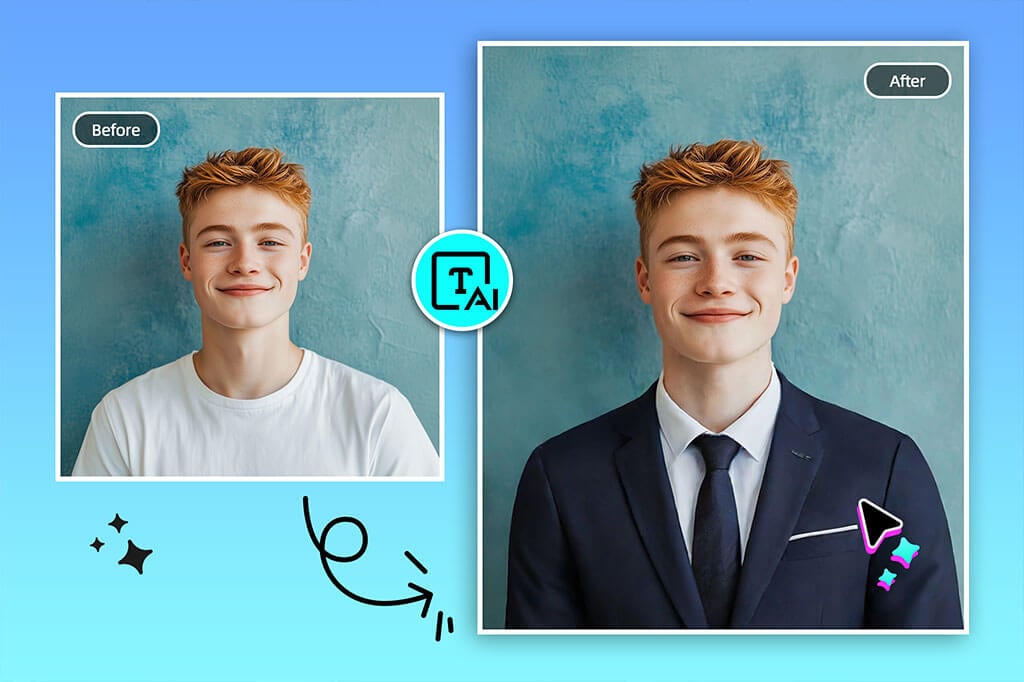
Change Casual Clothes to Formal Attire

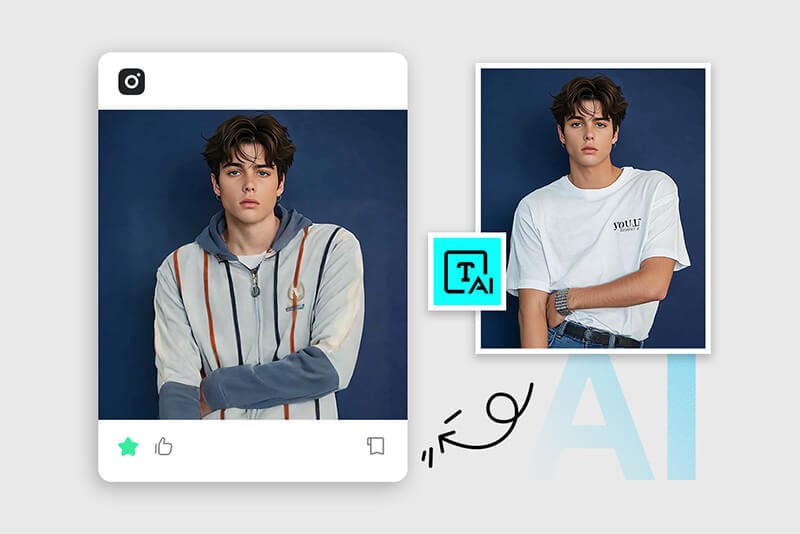
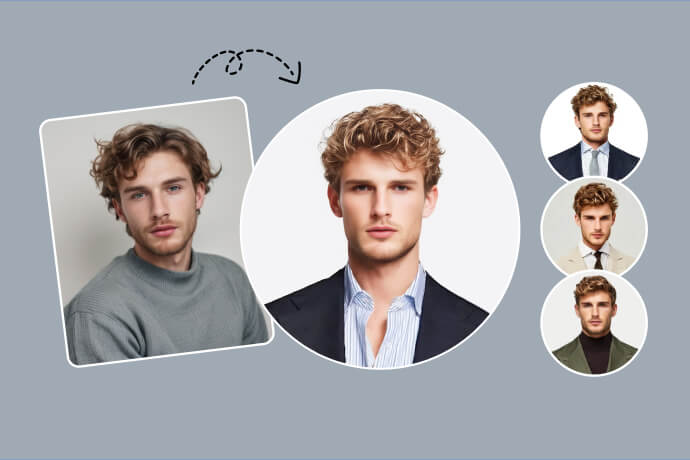
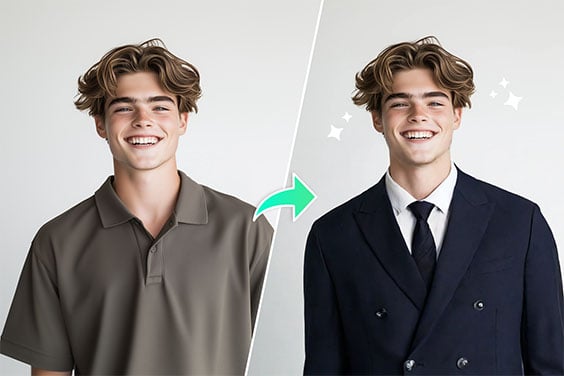
Replace a T-shirt or casual top with a blazer, dress shirt, suit, or other formal attire for a profile image, resume photo, staff introduction, or event preview. Prompts work better when they name the color, cut, shirt, tie, and level of formality.


For a complete business portrait treatment rather than a clothing-only edit, use the AI headshot generator. Always check the image rules before using an edited photo for an official document.

Create Costumes and Social Photo Variations

Create Costumes and Social Photo Variations

Change ordinary clothing into a Halloween costume, cosplay-inspired look, themed party outfit, or playful social post. Include the character type, colors, materials, and mood in the prompt while keeping protected logos or copyrighted designs out of commercial work unless you have permission.


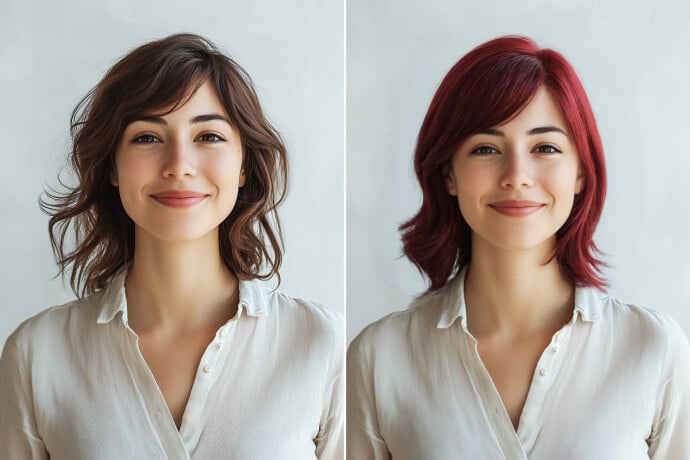
Complete the look with the AI hairstyle changer, but make one major edit at a time so it is easier to compare results.

Ways to Use an AI Clothing Changer

Preview a style direction, prepare a formal-looking portrait, or create themed content. Treat the result as a visual edit rather than a guarantee of real-world garment fit, size, or fabric behavior.

Fashion and E-commerce Concepts

Fashion and E-commerce Concepts

Create outfit concepts or on-model style variations for mood boards, campaign drafts, and creative testing. Review garment edges, patterns, logos, and product accuracy before using an AI-edited image in a listing or advertisement.

Personal Style and Outfit Planning

Personal Style and Outfit Planning

Compare colors, silhouettes, and dress codes on the same photo before an event, trip, or wardrobe update. An edited picture can help evaluate the overall look, but it cannot confirm real sizing, comfort, drape, or physical fit.

Formal Portraits, Costumes, and Social Posts

Formal Portraits, Costumes, and Social Posts

Test a suit for a profile image, a themed outfit for a party, or a costume for a social post. Use a clear prompt and inspect face, hair, hands, and clothing boundaries before publishing the result.

Why Use insMind to Change Clothes in Photos?

Brush Control for Specific Clothing Areas

Brush Control for Specific Clothing Areas

Choose the visible garment area you want to replace instead of applying a style filter to the entire photo. A careful selection helps preserve the face, hair, hands, pose, and surrounding scene.

Prompt-Based Outfit Direction

Prompt-Based Outfit Direction

Describe a shirt, dress, suit, jacket, costume, color, fabric, or pattern in plain language. More specific prompts make it easier to create purposeful variations and compare them.

Online Editing with a Review Step

Online Editing with a Review Step

Open the tool in your browser, generate an outfit change, and inspect the result before downloading. Difficult overlaps, tiny logos, transparent fabric, or complex poses may benefit from a refined selection and another pass.

Related Tools for Outfit and Portrait Editing

Frequently Asked Questions About AI Clothes Changers

What is an AI clothes changer?

insmind expand icon
An AI clothes changer edits the clothing visible in a photo while using the person, pose, and surrounding image as context. On insMind, you brush over the clothes to replace and describe the new outfit in text. It is useful for creative styling and photo editing, but it does not measure real garment size or fit.

How do I change someone’s clothes with AI?

insmind expand icon
Upload a photo you have permission to edit, brush over the original clothing, and describe the replacement outfit. Specify the garment type, color, fit, fabric, and occasion, then generate and inspect the neckline, sleeves, hands, waist, and background before downloading.

What photos and clothing types work best?

insmind expand icon
Use a clear photo with one visible person, good lighting, and minimal obstruction over the outfit. Shirts, jackets, dresses, suits, uniforms, pants, and costumes can all be described. Complex poses, crossed arms, loose hair over clothing, tiny patterns, text, and reflective or transparent fabric may need extra review or another pass.

What should I do if the outfit change looks unnatural?

insmind expand icon
Refine the brushed area so it includes all of the original garment but avoids nearby skin, hair, and background. Make the prompt more specific, then generate again. Check for leftover fabric, uneven sleeves, broken hands, warped logos, repeated texture, and inconsistent lighting before using the image.

Can I use the insMind AI clothes changer for free?

insmind expand icon
You can open the online editor from this page and start an AI clothing change. Current free access, credits, export resolution, and download options are shown in the editor, so review those conditions before generating or exporting your final image.

Keep Editing Your Outfit Photo

Choose a focused next step for the outfit, portrait, hairstyle, or final image quality.