
Free Online Image Background Remover

Upload a photo to remove its background automatically. Keep the subject on a transparent canvas, check the cutout, then download it or place it on a new background.

00:00
00:00
up to 30 images
Or drop image here, paste image or URL
Try with one of these
Background Remover 1
Background Remover 2
Background Remover 3
Background Remover 4
Background Remover 5
00:00
00:00
Discover popular features
AI Image EnhancerAI Image Enhancer
AI Image ExpandAI Image Expand
Magic EraserMagic Eraser
AI BackgroundAI Background
Remove an Image Background Automatically

Remove an Image Background Automatically

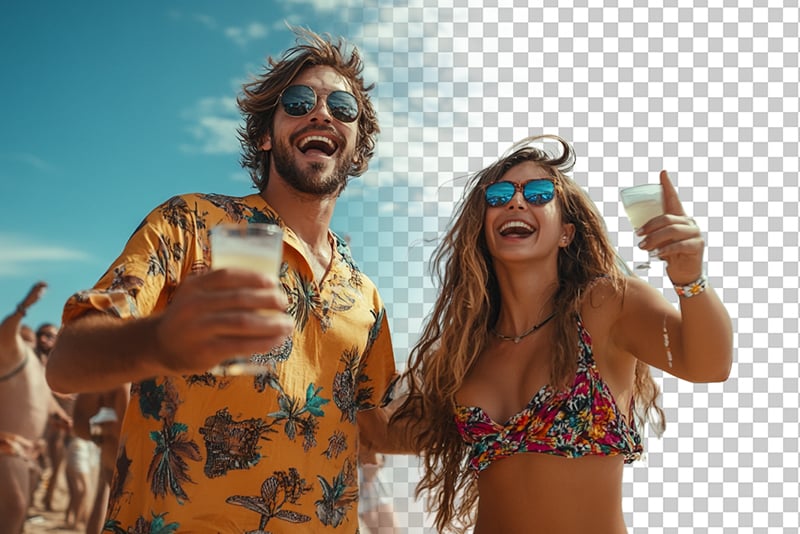
Upload one photo and insMind identifies the main subject, removes the surrounding background, and opens the result in the editor. This gives you a fast first cutout without tracing the subject by hand.


Before downloading, zoom in around hair, fur, transparent objects, narrow gaps, and low-contrast edges. Those details are harder for any automatic background remover, so the preview is the place to confirm that the subject is complete.

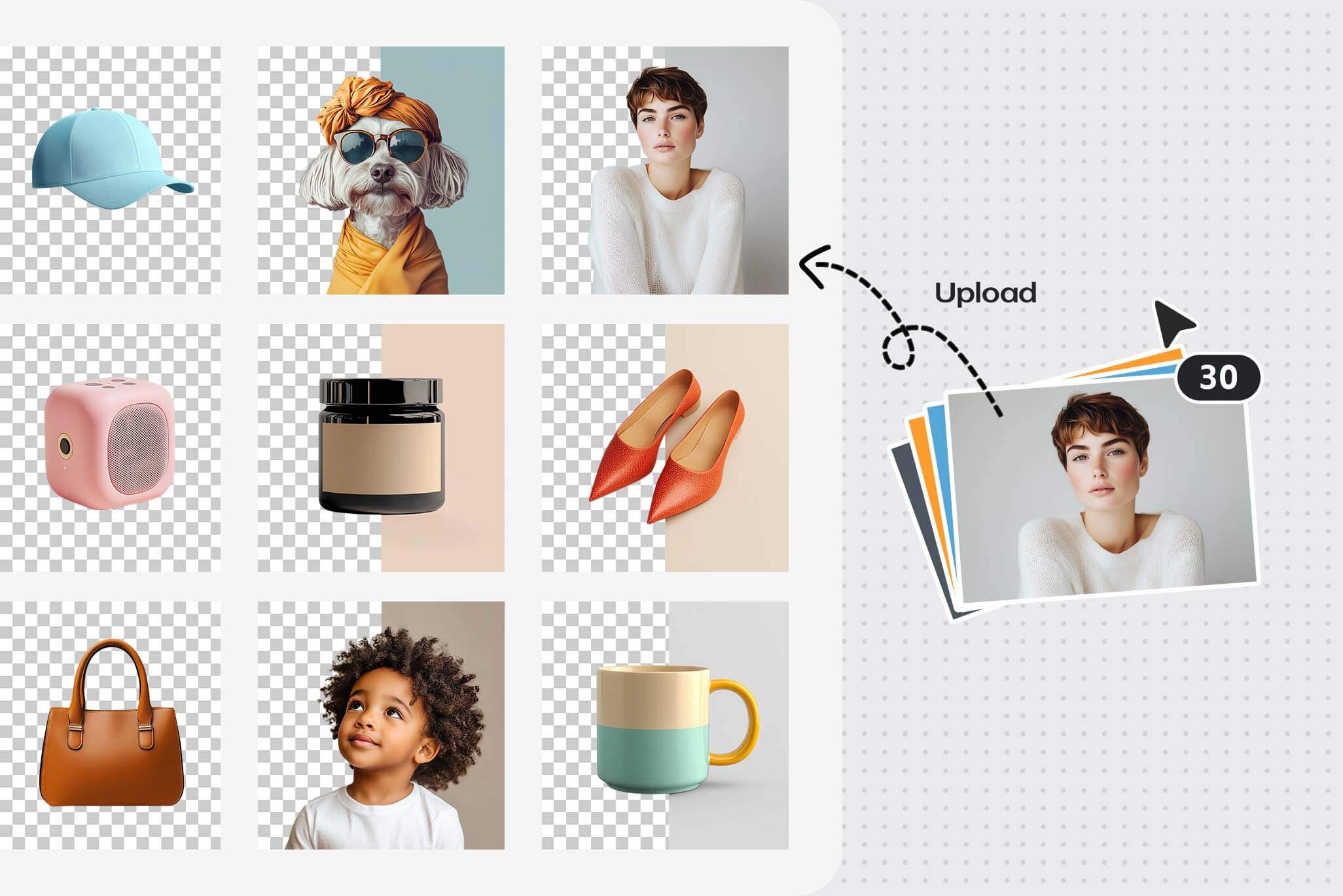
Remove the background
Create a Transparent Background for Reuse

Create a Transparent Background for Reuse

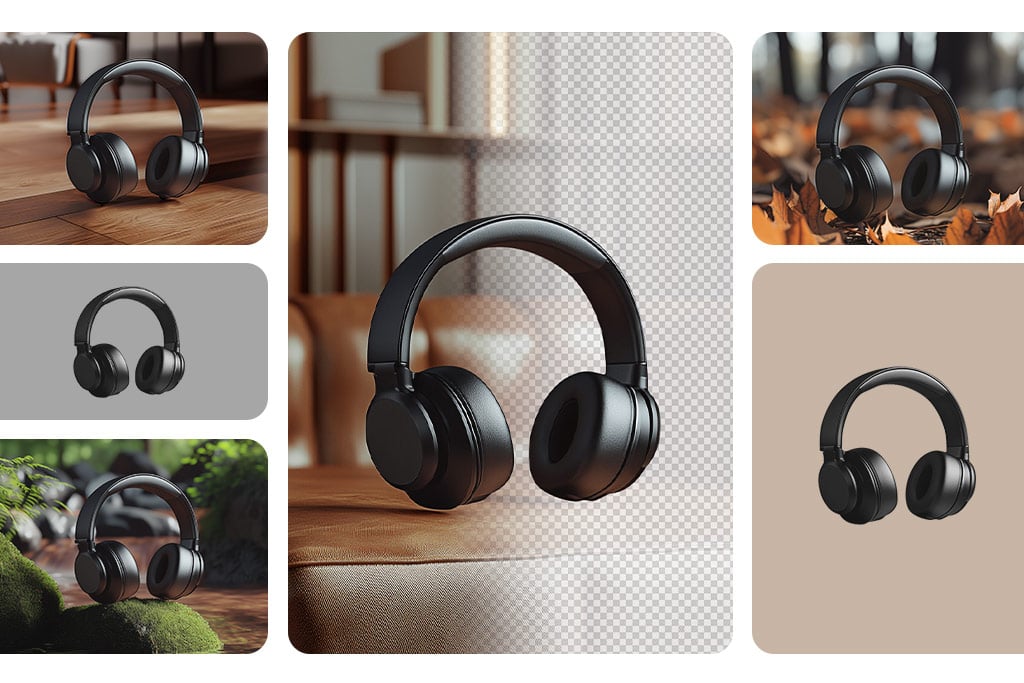
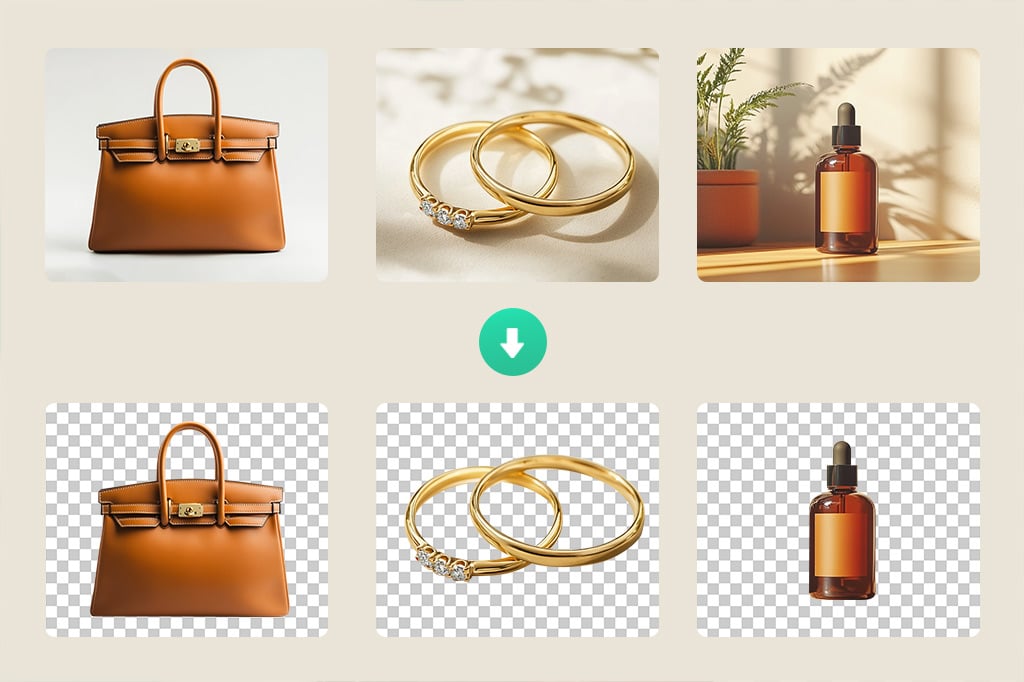
Leave the canvas transparent when you need a cutout for a product listing, presentation, social graphic, profile image, or design file. The checkerboard preview helps you distinguish transparency from a white background.


Check for leftover color around the outline before export. If your main goal is a reusable transparent asset, continue with the PNG maker after the background is removed.

Make the background transparent
Remove Backgrounds from Multiple Images in a Batch

Remove Backgrounds from Multiple Images in a Batch

A catalog or content set needs a different workflow from a single photo. Use the bulk background remover when several images need cutouts, then review the group for consistent edges and subject placement.


For additional changes across the same set, the batch photo editor can help standardize backgrounds, sizes, and other repeated edits. This keeps bulk intent on the dedicated batch tools while this page stays focused on one image at a time.

Remove backgrounds in bulk
Replace the Removed Background with a Better Fit

Replace the Removed Background with a Better Fit

After the cutout is ready, keep it transparent or place it on a solid color, another image, or a generated scene. For marketplace-ready product photos, add a white background; for brand colors, use the background color changer.


When you need a new setting rather than a flat color, continue to the AI background generator. Match perspective, lighting, and contact shadows so the subject belongs in the replacement scene.

Remove and replace the background
Continue Editing after Background Removal

Continue Editing after Background Removal

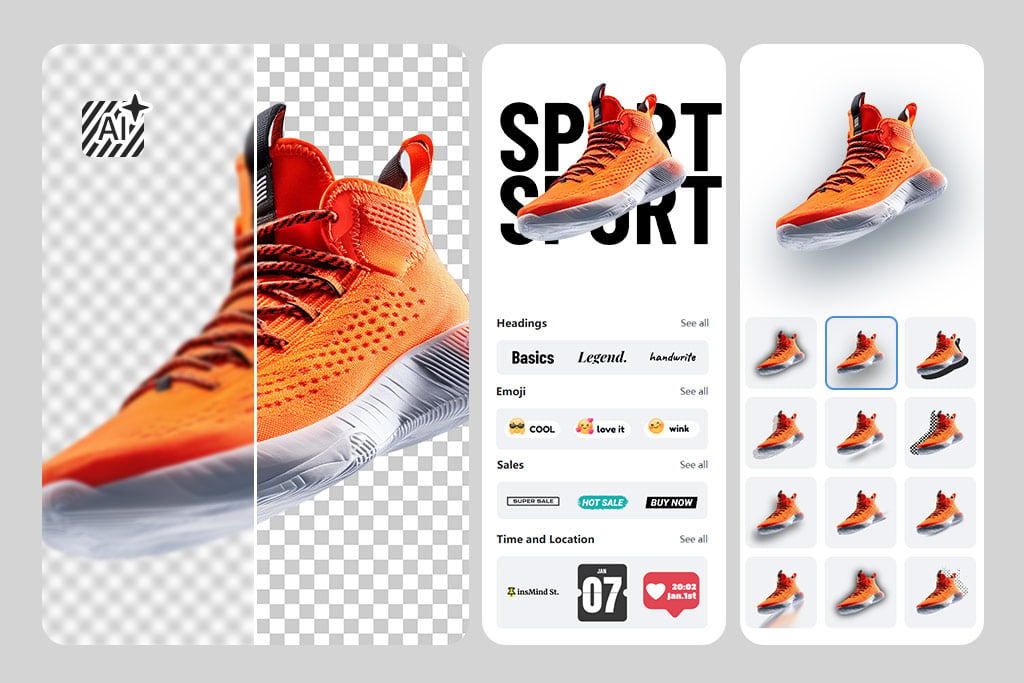
A clean cutout is often the first step, not the final image. Add text for a promotion, remove a distracting object, sharpen a soft source, resize the canvas, or add a shadow after the background has been cleared.


Use the Magic Eraser for a specific unwanted object, the image sharpener for a soft photo, or add text to the photo. Keep each edit purposeful and check the finished image at its actual display size.

Remove a photo background

Background Removal Tools for Specific File Types

How to Remove the Background from an Image Online

Step 1: Upload an Image
1

1 Step 1: Upload an Image

Click Upload a photo, choose one image from your device, or drag it onto the page. Use the clearest source available; a larger subject with visible edges is easier to review after the background is removed.
Step 2: Let AI Remove the Background
2

2 Step 2: Let AI Remove the Background

insMind detects the main subject and removes the surrounding area automatically. You can also select the image in the editor and open Cutout when you need to run the background-removal action from the editing workspace.
Step 3: Check the Cutout or Add a New Background
3

3 Step 3: Check the Cutout or Add a New Background

Inspect the outline around hair, fur, fingers, product edges, and narrow gaps. Keep the checkerboard canvas for transparency, choose a background color, or add another image or AI-generated background if the cutout is going into a new scene.
Step 4: Preview and Download
4

4 Step 4: Preview and Download

Review the result at normal size and zoomed in. Confirm that the subject is complete and that no unwanted edge color remains, then choose the available download option that fits your next use.

Remove Photo Backgrounds for Everyday Creative Work

Start with a clean subject cutout, then prepare the background and canvas for the channel where the image will appear. The right finish depends on whether you are selling a product, building a campaign, or editing a portrait.

Ecommerce Product Photos

Ecommerce Product Photos

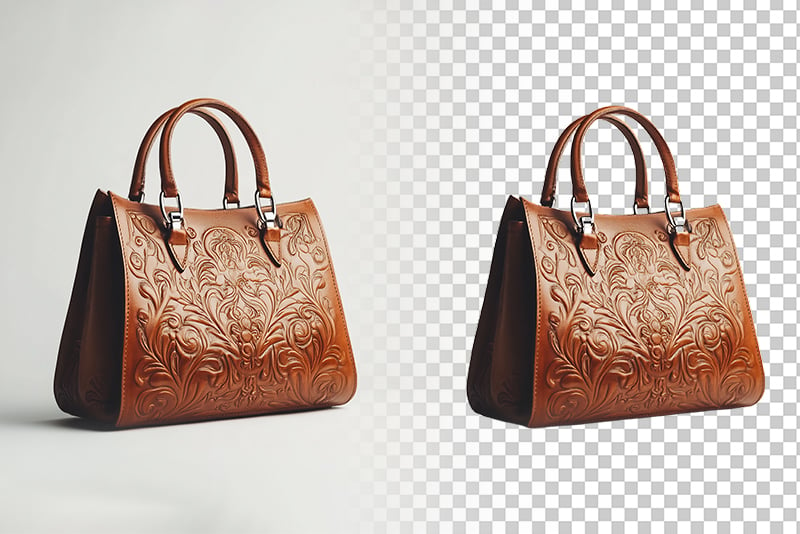
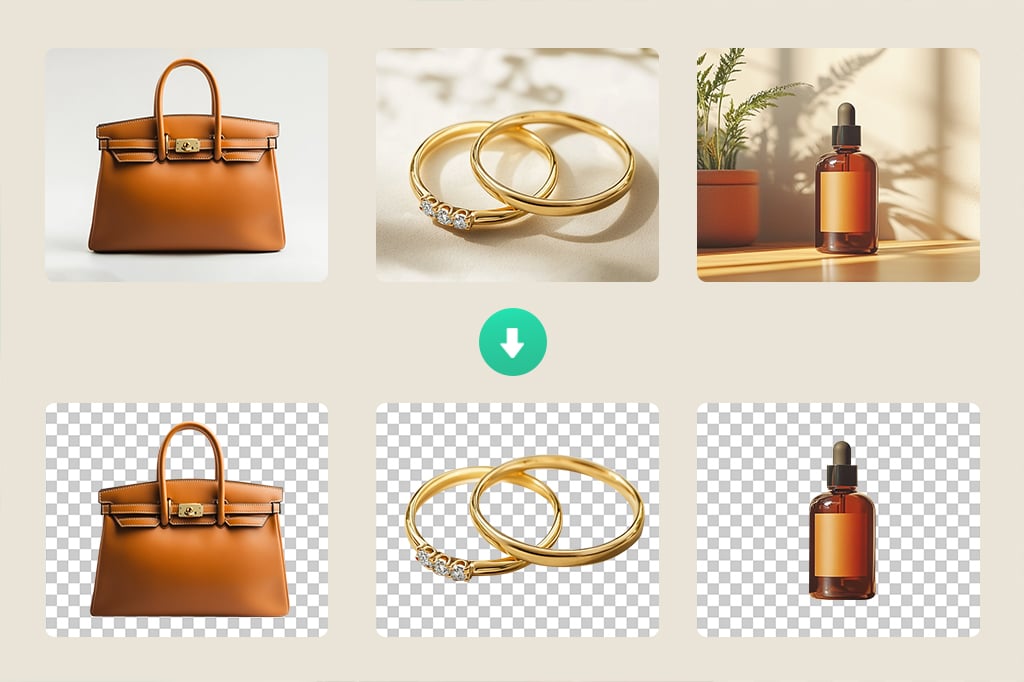
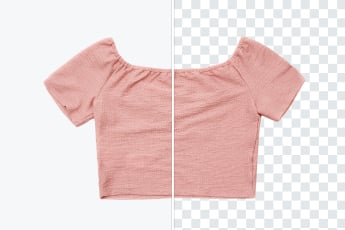
Separate a product from a distracting setting before placing it on a clean listing background. Check reflective surfaces, handles, gaps, and soft shadows, then keep product scale and placement consistent across the storefront.
Marketing and Social Graphics

Marketing and Social Graphics

Turn a person, product, or prop into a reusable cutout for ads, thumbnails, posts, and banners. Leave enough contrast around the subject and test the final composition at the size used by the target channel.
Portraits and Profile Images

Portraits and Profile Images

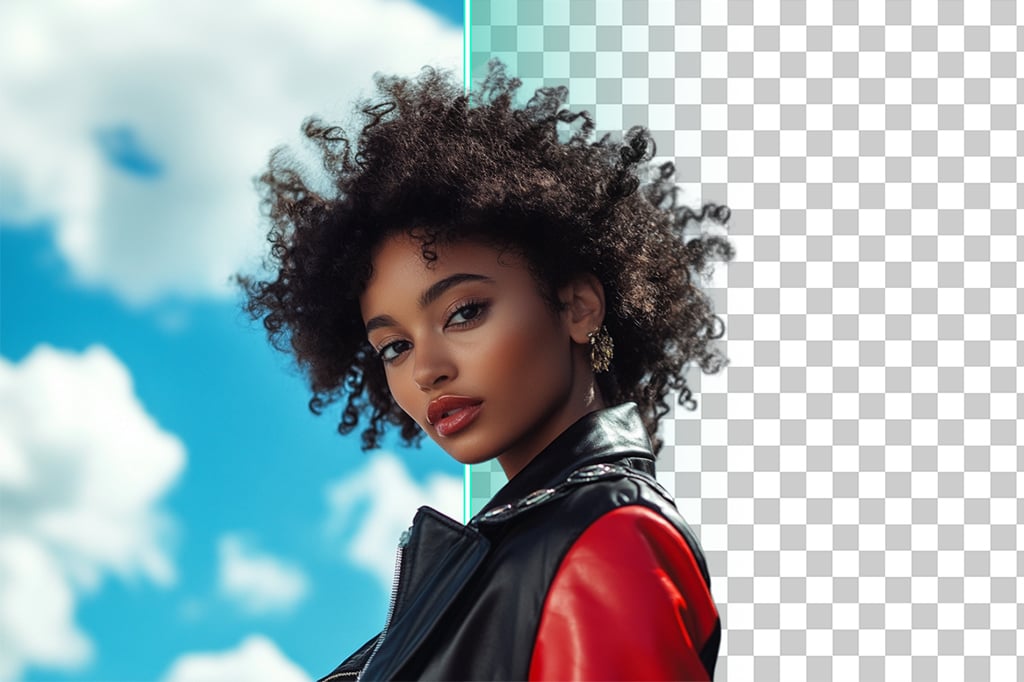
Remove a busy portrait background before adding a neutral color or a setting that suits a profile, presentation, or campaign. Pay particular attention to hair, glasses, earrings, and clothing edges before export.

What Images Can You Use with an AI Background Remover?

Automatic removal works across many common subjects, but edge difficulty varies. Start with a clear source, then inspect fine detail, similar foreground and background colors, transparency, reflections, and motion blur.

Products

Products

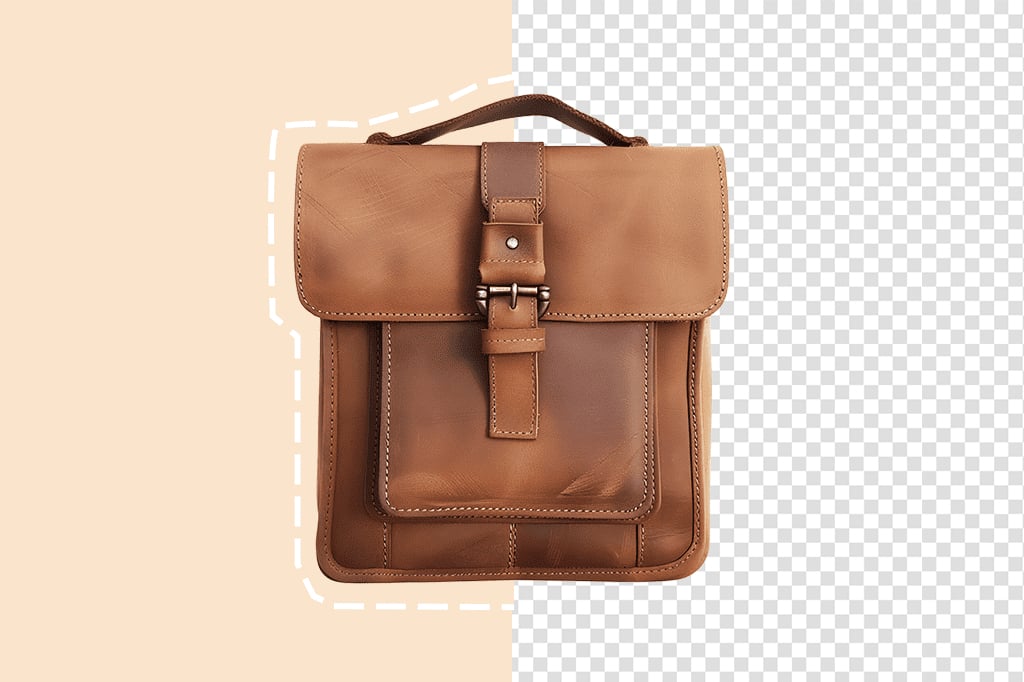
Create a transparent or clean-background product cutout for listings, catalogs, ads, and comparison graphics. Review reflective packaging, thin straps, and openings before using the result in a template.
People

People

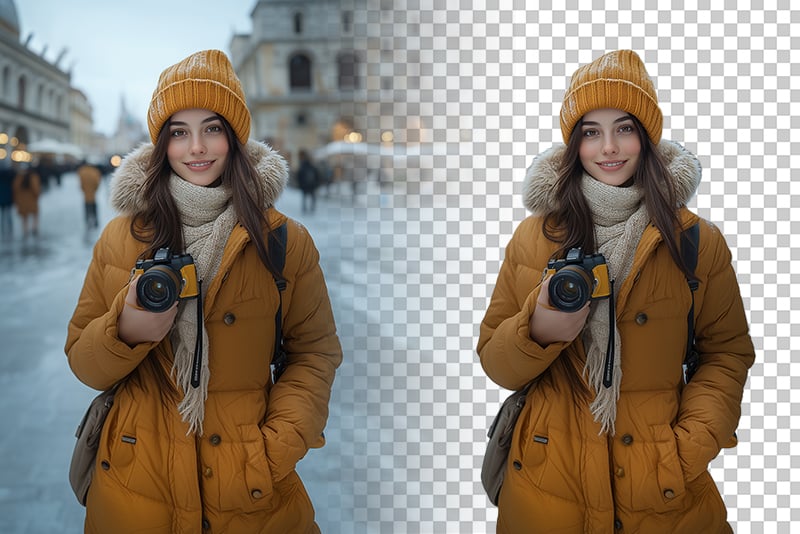
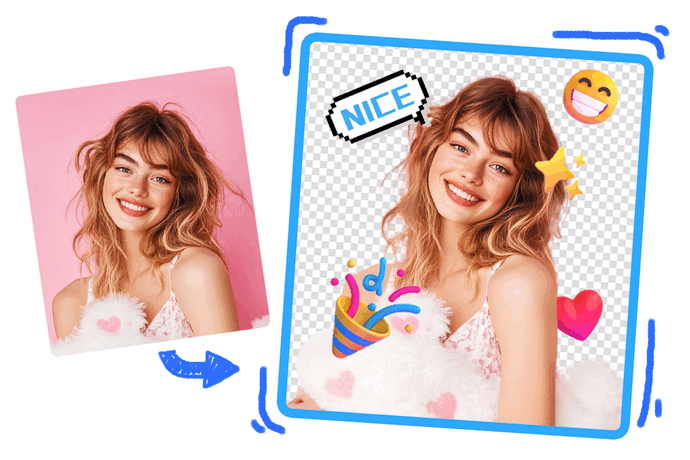
Separate a person from a room, street, or event background for a profile image or creative composition. Zoom in around hair, fingers, glasses, and clothing that has a similar color to the original setting.
Animals

Animals

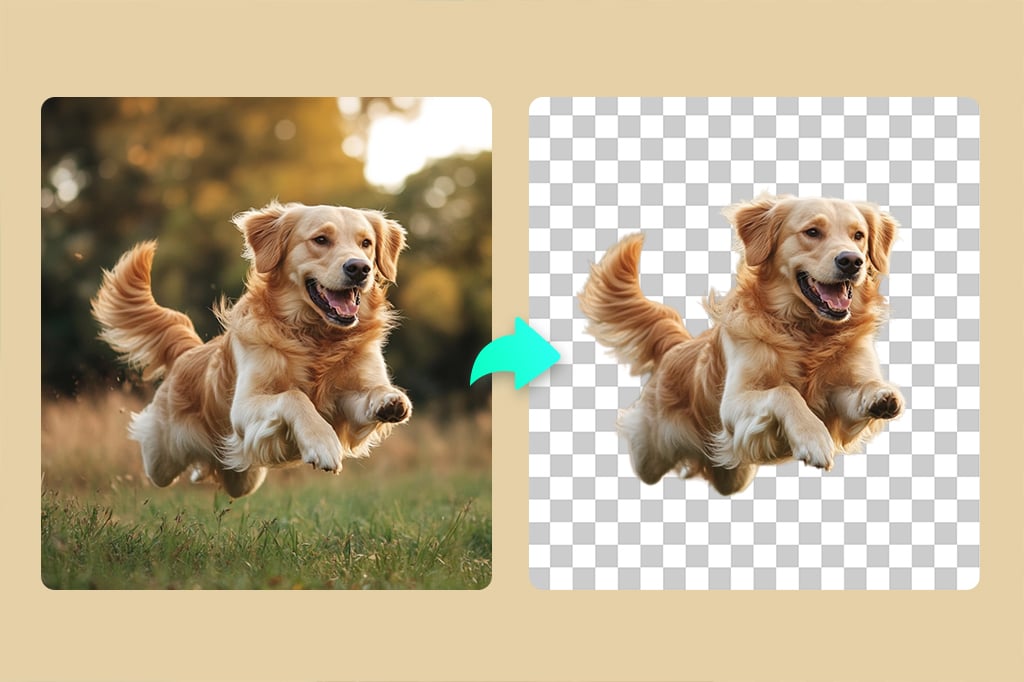
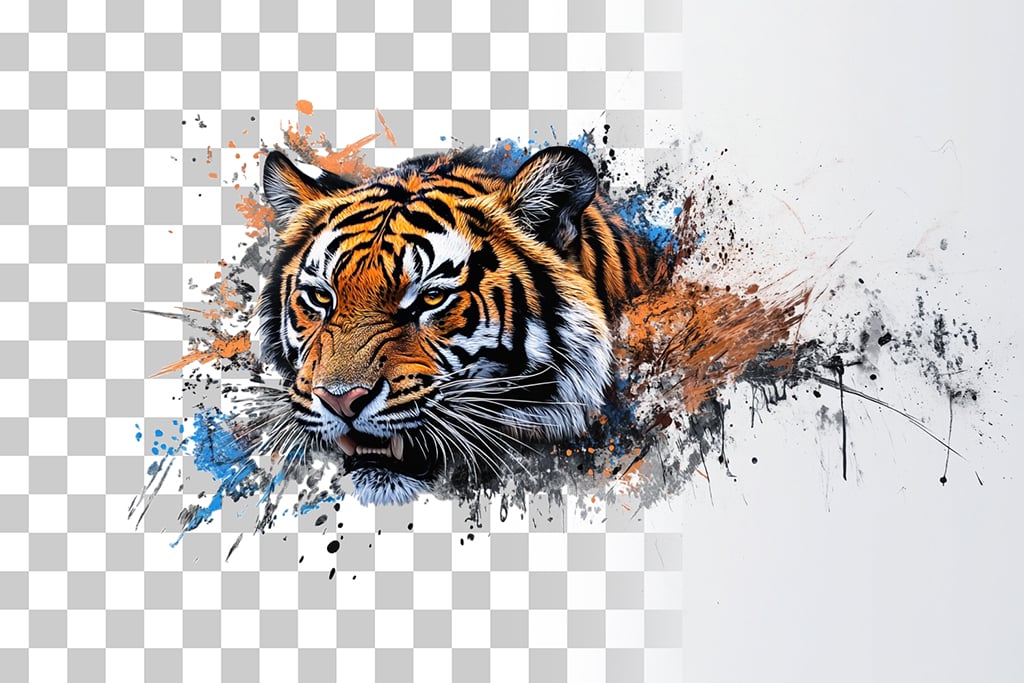
Remove the scene around a pet for a sticker, post, card, or keepsake. Fine fur and motion blur can create soft boundaries, so check the full outline rather than judging only the center of the subject.
Cars

Cars

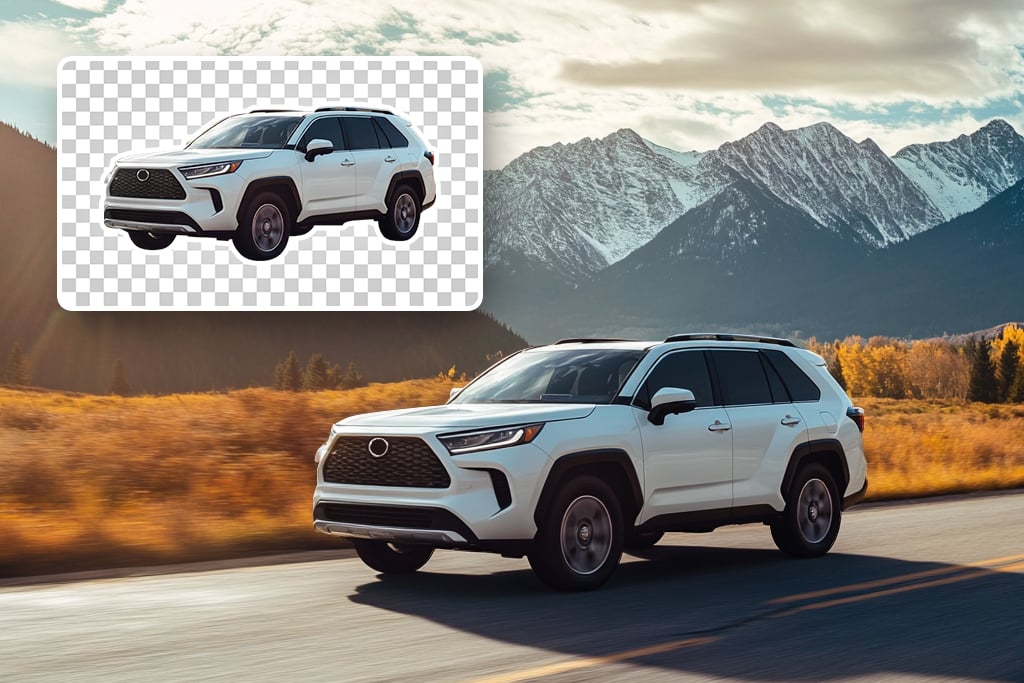
Isolate a vehicle for a listing, dealership graphic, comparison, or concept image. Inspect windows, mirrors, wheel spokes, reflections, and the area under the car before placing it on another background.
Logos

Logos

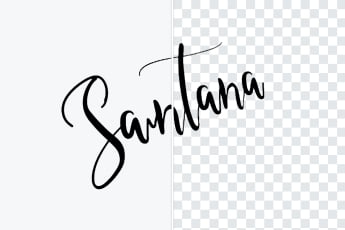
Prepare a logo for a website, slide, product image, or brand layout. For small lettering and intricate marks, use the dedicated logo background remover and review every interior gap.
Graphics and Illustrations

Graphics and Illustrations

Extract an icon, illustration, or design element for reuse in another composition. Keep intentional holes and linework, and make sure a white area that belongs to the artwork was not mistaken for the background.

Why Use insMind to Remove an Image Background?

Automatic First Cutout

Automatic First Cutout

Upload one image and start with an AI-generated cutout instead of tracing the full subject manually. The editor keeps the workflow focused: remove the background first, then review the outline before moving on.

Transparent or Replacement Background

Transparent or Replacement Background

Keep the result transparent for reuse, add a solid color, or continue to a new image or generated scene. This lets the same subject move from a source photo into a product listing, profile, campaign, or design layout.

A Browser-Based Editing Workflow

A Browser-Based Editing Workflow

Open the tool on desktop or mobile without installing a separate background eraser. Work from the preview, check difficult edges, and choose the available export that fits the image's next destination.

insMind in Independent Media

Explore third-party coverage of insMind's AI photo editing tools and product experience.

Background Remover FAQs

How do I remove the background from an image online?

insmind expand icon
Upload one image and let insMind detect the main subject and remove the surrounding background. Check the cutout around fine or low-contrast edges, keep it transparent or add a new background, then choose the available download option.

Can I use the background remover for free?

insmind expand icon
You can start the background-removal workflow online for free. Available export resolution, formats, credits, or account requirements may depend on the option you choose in the editor, so check the download panel before final export.

How do I make an image background transparent instead of white?

insmind expand icon
After removal, keep the checkerboard canvas rather than adding a color or image. The checkerboard represents transparency; a solid white canvas is a white background. Preview the outline and choose an export option that preserves transparency when available.

Can I remove a photo background on my phone?

insmind expand icon
Yes. Open the page in your mobile browser, tap Upload a photo, choose an image, and review the automatic cutout. You can keep the background transparent or replace it before downloading through the options shown in the editor.

What should I look for in the best background remover for my image?

insmind expand icon
Judge the actual cutout, not only processing speed. Check how the tool handles the subject type you use, especially hair, fur, transparent objects, narrow gaps, reflections, and similar foreground and background colors. Also confirm that the editor offers the background and export options your final channel requires.

Continue with Background and Cutout Tools

Use a dedicated remover for a specific background type, turn the cutout into a reusable asset, or finish the composition in the editor.

Read More Related Articles